· Nas · Technology · 10 min read
What are MCPs? AI Agents Beginner Guide
MCPs (Model Context Protocols) are the universal translator that lets Claude talk to Gmail, Google Drive, Notion, Figma, and hundreds of other tools, without you having to build any custom integration. Here's how they work and how to set them up in minutes.
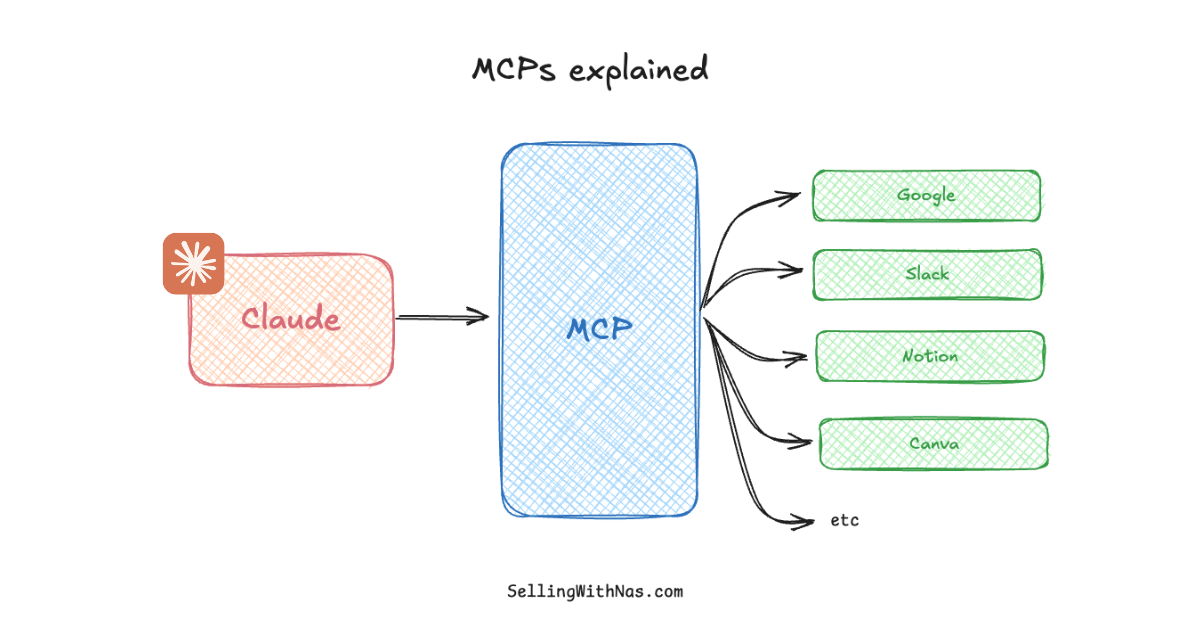
What are MCPs? AI Agents Beginner Guide
- MCP stands for Model Context Protocol - a universal standard that lets Claude communicate with external tools and services.
- Think of MCPs as a translator layer: instead of building a custom integration for every app, one protocol handles them all.
- Claude currently supports connectors for Gmail, Google Drive, Google Calendar, Notion, Figma, Canva, Microsoft 365, and a lot more.
- You can add connectors in under 2 minutes: Claude app → Customize → Connectors.
- No coding is required for MCPs to work in both the Claude desktop app and Claude.ai.
If you’ve been using Claude for a while, you’ve probably wished it could just pull up that email thread, check your calendar, or update a Notion doc, without actually having to copy-paste everything manually. That’s exactly what MCPs make possible - using external tools via your claude account.
In this guide, I’ll break down what MCPs actually are, why they’re a big deal for anyone building AI-powered workflows, and how to start using them today with zero technical setup.
What Does MCP Stand For?
MCP stands for Model Context Protocol. It’s an open standard created by Anthropic that defines a common language for AI models to communicate with external tools, APIs, and data sources.
Before MCP existed, connecting an AI to any external service meant building a completely custom integration, so writing code to authenticate with the API, format requests correctly, handle responses, manage errors, etc. That process had to be repeated for every single tool you wanted to connect.
MCP changes that by providing one standardized protocol that any tool can implement. Once a tool speaks MCP, Claude can communicate with it immediately and no additional custom infrastructure is required on your end.
MCPs Explained: The Universal Translator Analogy
The easiest way to understand MCPs is to think of them as a universal translator.
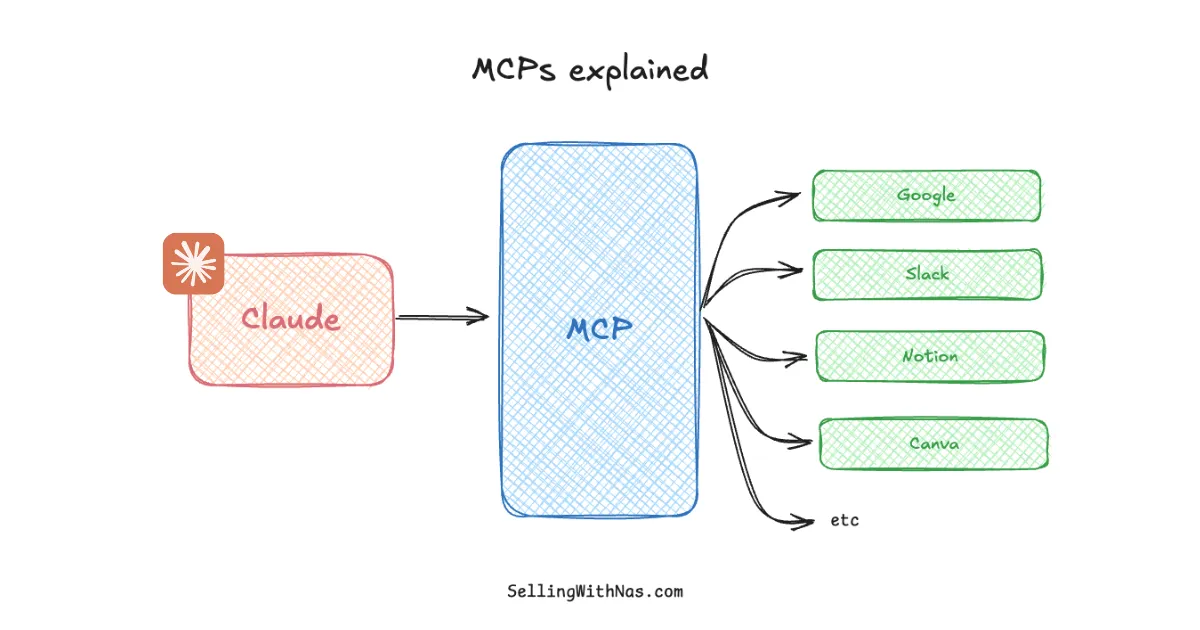
Imagine Claude is a very capable person who speaks one language. Gmail speaks its own language. Google Drive speaks another. Notion, Figma, Canva - they each have their own dialect. Without a translator, Claude can’t communicate with any of them, no matter how smart it is.
This of the MCP as the translator. It sits between Claude and all of these tools, converting Claude’s requests into a format each tool understands, and converting the tool’s responses back into something Claude can work with.
The result: Claude can search your inbox, read a file from your Drive, check your calendar, update a Notion page, or query a database - all within a single conversation, without you having to build anything.
This is what transforms Claude from a smart chat assistant into an actual AI agent: something that can take actions across your digital environment on your behalf.
Why MCPs Matter for Your Workflow
Before MCPs, most AI tools worked in isolation. You’d describe a problem to Claude, get an answer, then manually go execute it yourself across five different apps.
With MCPs, the loop closes. Claude can:
- Read your emails and draft replies in your voice
- Search and access files from Google Drive without you uploading them
- Check and create calendar events based on your schedule
- Update Notion databases directly from a conversation
- Pull design assets from Figma or Canva and use them as context
- Access your Microsoft 365 environment including SharePoint, OneDrive, and Teams
This isn’t theoretical anymore, as these are all live connectors you can enable today. And because they all use the same MCP standard, adding a new one takes minutes, not weeks of engineering work.
If you want to go deeper on how Claude can run tasks autonomously on your computer, check out my Claude Cowork tutorial - it builds on top of this foundation.
How to Add MCP Connectors in Claude
Here’s exactly how to access and enable connectors in the Claude app:
Step 1: Open the Claude desktop app or go to claude.ai
Step 2: Click Customize in the top navigation
Step 3: Select Connectors from the left sidebar
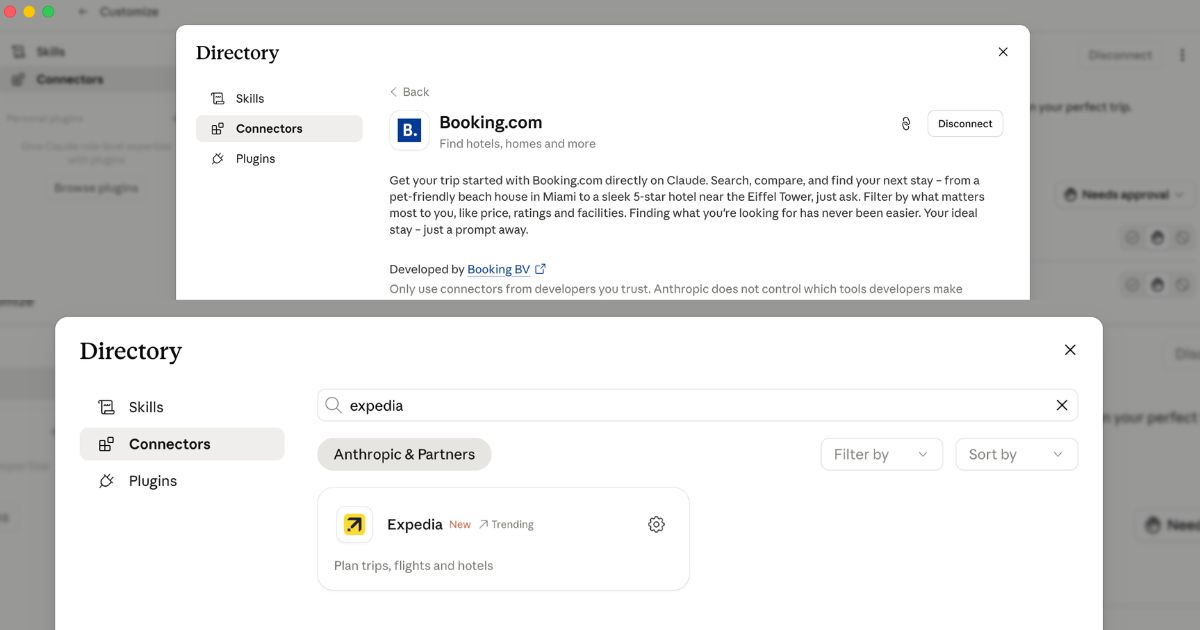
Step 4: Browse the directory and click + next to any connector you want to add
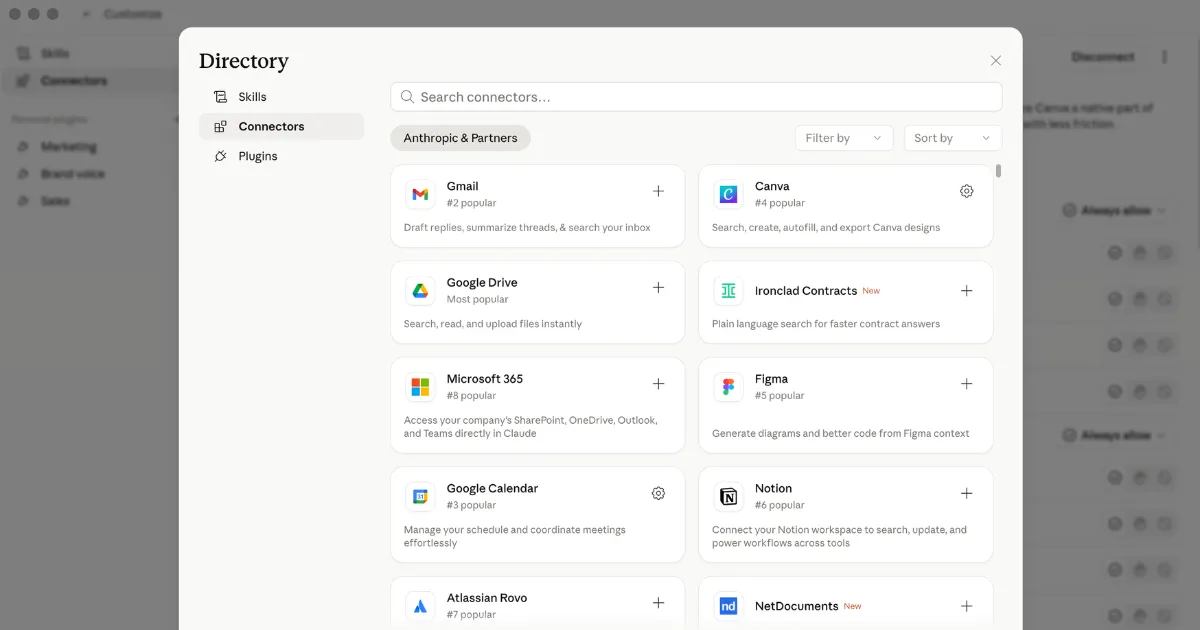
As you can see in the screenshot above, the Connectors directory inside Claude shows you all the available integrations sorted by popularity. The most popular ones as of now include:
| Connector | What It Does |
|---|---|
| Google Drive | Search, read, and upload files instantly |
| Gmail | Draft replies, summarize threads, search your inbox |
| Google Calendar | Manage your schedule and coordinate meetings |
| Notion | Connect your workspace to search, update, and power workflows |
| Canva | Search, create, autofill, and export Canva designs |
| Figma | Generate diagrams and better code from Figma context |
| Microsoft 365 | Access SharePoint, OneDrive, Outlook, and Teams directly |
| Atlassian Rovo | Connect your Jira and Confluence workspace |
Once a connector is enabled, you just talk to Claude naturally. You don’t need to learn any special syntax - just say “find my latest email from [name]” or “create a calendar event for Friday at 3pm” and Claude goes off into work, loading the relevant tools, accessing them and delivering the output you requested for.
MCPs vs Plugins vs Skills: What’s the Difference?
This is a common point of confusion, so let me clarify:
- MCPs / Connectors - real-time connections to external services (Gmail, Drive, Notion). Claude can read and write to these systems live during your conversation.
- Skills - pre-built prompt templates and workflows that give Claude specialized expertise (like a design skill, a video creation skill, or a commit skill). They don’t connect to external services — they shape how Claude thinks and responds. Read more in my Claude Skills guide.
- Plugins - tool-specific extensions available in some interfaces. Less standardized than MCPs.
MCPs are the most powerful of the three because they give Claude live access to real data and real actions. Skills and plugins are about how Claude behaves - MCPs are about what Claude can do.
Your turn to build
Build your beautiful website today
MCPs connect the tools. A website is what you point them at. My complete step-by-step pack takes you from a blank screen to a real website, live on your own domain - plus a private 1-on-1 call with me.
Build My Website With Claude →Lifetime access · Beginner friendly · No code needed
Prefer it done for you? Get in touch →
What Can You Build With MCPs?
Once your connectors are set up, the real power comes from combining them. A few practical examples:
Email + Calendar: Ask Claude to find all emails about a specific project and schedule a follow-up based on what’s available on your calendar. Claude reads both systems and drafts a reply and a meeting invite in one go.
Drive + Notion: Ask Claude to summarize a report from your Google Drive and create a structured summary page in your Notion workspace. No copy-pasting between tabs.
Figma + Claude Code: Share your Figma design context with Claude while you’re building in Claude Code - Claude can reference the exact design specs and translate them directly into code.
Gmail + Canva: Pull a product brief from an email thread and use it as context to generate a matching Canva design concept.
These workflows were impossible six months ago without a developer building custom API integrations. Now they’re a few clicks and a conversation.
The Bigger Picture: From Chatbot to AI Agent
MCPs represent a fundamental shift in what AI assistants can be. A chatbot responds to questions. An AI agent acts on your behalf across real systems.
The Model Context Protocol is the infrastructure layer that makes AI agents practical for everyday users. It’s the reason Claude can move from answering “what should I say in this email?” to actually reading the thread, drafting the reply, and sending it (all in the same session).
As more tools adopt the MCP standard (and Anthropic is actively expanding the list), Claude’s ability to act as a genuine digital colleague will keep growing.
If you’re just getting started with Claude, check out my full beginner guide to Claude Code — MCPs and connectors are one piece of a larger system that can genuinely automate a significant chunk of your work.
Frequently Asked Questions
What does MCP stand for? MCP stands for Model Context Protocol. It’s an open standard developed by Anthropic that defines how AI models communicate with external tools and data sources.
Do I need to know how to code to use MCPs? No. Adding connectors in the Claude app is a point-and-click process. You don’t need to write any code to enable Gmail, Google Drive, Notion, or any of the other available connectors.
Are MCPs only available on Claude Pro? Most connectors require a Claude Pro or Team plan. The free tier has limited access. Check the Claude pricing page for the latest details on what’s included.
Is it safe to connect Claude to my Gmail or Google Drive? Connectors use OAuth authorization, meaning Claude requests access through your Google account - not by storing your credentials. You can revoke access at any time through your Google account settings or within Claude.
What’s the difference between an MCP and a connector? In the Claude interface, “connectors” are the user-facing term for MCP-powered integrations. Under the hood, they use the Model Context Protocol. The terms are effectively interchangeable from a user perspective.
How many connectors can I add? There’s no hard limit on the number of connectors you can enable, though enabling too many at once can add overhead to each conversation. Enable the ones you actively use and disable the rest — it keeps your sessions lean and focused.
Can I build my own MCP server? Yes. Because MCP is an open standard, developers can build their own MCP servers to expose custom tools, internal databases, or proprietary APIs to Claude. Anthropic has published the full spec on GitHub.
Will more connectors be added over time? Yes. Anthropic is actively expanding the connector directory, and third-party developers are building MCP servers for their own platforms. The ecosystem is growing quickly.
Liked what you just saw? Follow me on Youtube or connect on LinkedIn for more insights on growing your business online.
Video Guides you might like:
 How to use Claude Code to build Apps
  10 Best Claude Code Skills for beginners
  How to create AI Video Animations with Claude + Remotion
  How to use Claude Code to build a Website
  How to use Claude Skills for beginners
  How to write the PERFECT CLAUDE.md file
  Automate 80% of your Marketing with Claude
  How to use Claude Code — The basics
  Work 2X Faster with Claude Cowork
  How to NEVER Hit Claude Usage Limits Again