· Nas · Technology · 6 min read
How to Download and Use a Skill with Claude AI and Claude Desktop App
Claude Skills are lightweight files that give Claude specific knowledge and instructions - and they can supercharge your workflow massively. Here's exactly how to find one and install it in minutes.
How to Download and Use a Skill with Claude AI and Claude Desktop App
One of the most underrated features in Claude is Skills. If you haven’t used them yet, you’re leaving a lot of capability on the table.
A Skill is a lightweight file — a SKILL.md — that gives Claude a specific set of knowledge, instructions, and context around a particular task. Instead of explaining what you want from scratch every time, you install the skill once and invoke it with a single command. Claude then knows exactly what to do.
Think of Skills as mini-experts you can add to Claude on demand: a LinkedIn post writer, an ICP researcher, a video script formatter, a code reviewer. The list is endless — and growing every day.
Want help setting up Claude Skills for your specific workflow?
Get in Touch Today →What Are Claude Skills — and Why Do They Matter?
A Claude Skill is essentially a set of instructions packaged into a single Markdown file. When you upload a Skill to Claude, it reads the file and adds that knowledge and set of behaviours to its toolkit. You can then trigger the skill using a /command inside your conversation.
This matters because Claude is a generalist by default. It knows a lot about a lot — but it doesn’t know your specific workflow, your preferred output format, or the niche task you need help with. A Skill bridges that gap in seconds.
Skills are:
- Free to use — most are open source and shared by the community
- Easy to install — the process takes under 5 minutes
- Reusable — once installed in a project, they’re available every session
- Customisable — you can edit the
SKILL.mdfile to tailor it to your needs
If you’re looking for inspiration on which skills to use, I’ve written a full post covering my top 15 favourite Claude skills — from writing tools to research assistants to video generators. That’s a great starting point.
What You Need Before You Start
To use Skills, you need to be on Claude Cowork (the Claude desktop app) or Claude Code. Either way, a Pro subscription is the minimum requirement — Skills are not available on the free tier.
If you haven’t set up Claude Cowork or Claude Code yet, I’d recommend starting with one of these guides first:
- Claude Cowork Full Tutorial for Beginners
- Claude Code Full Tutorial for Beginners
- How to Use Claude Code for Beginners
Once you’re set up and logged in to the Claude desktop app, you’re ready to install a skill.
Where to Find Skills
The best place to find community-built Claude Skills is on GitHub. The Awesome Claude Skills repository by ComposioHQ is a curated list of skills across categories like marketing, research, development, content, and more.
Each skill lives in its own folder and contains a SKILL.md file. That file is all you need.
When you’re browsing, look at the skill’s README or the top of the SKILL.md for:
- What it does — the specific task or output it’s designed for
- How to invoke it — the
/commandyou’ll use to trigger it - What inputs it expects — what you need to provide when you run it
Once you’ve found a skill you want, it’s time to download it.
Step 1: Download the Skill from GitHub
Navigate to the skill’s GitHub page and open the SKILL.md file. You’ll see a Download raw file button in the top-right corner of the file view — click it to save the file to your computer.
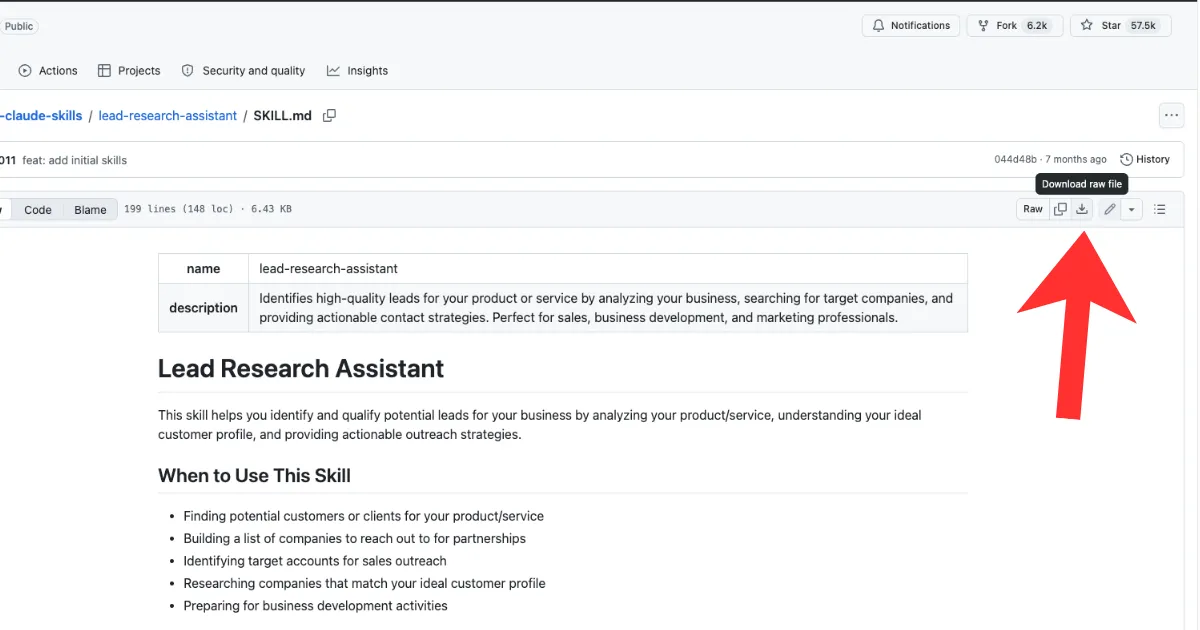
Keep the file name as SKILL.md or rename it to something descriptive (e.g. lead-research-assistant.md). Either works fine — Claude reads the contents of the file, not the name.
Step 2: Open Customize in Claude Desktop
Open the Claude desktop app (Cowork). In the left sidebar, click on Customize.
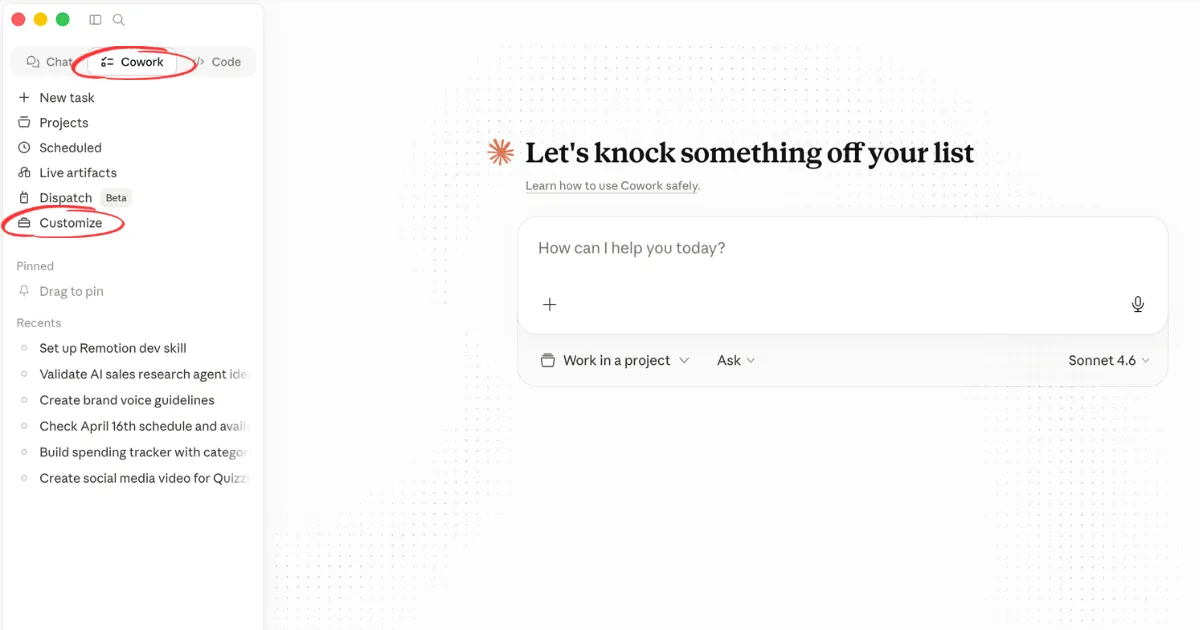
This is where you manage your Claude settings — including Instructions, Capabilities, and Skills. You’ll land on this panel any time you want to add or edit a skill.
Step 3: Upload the Skill
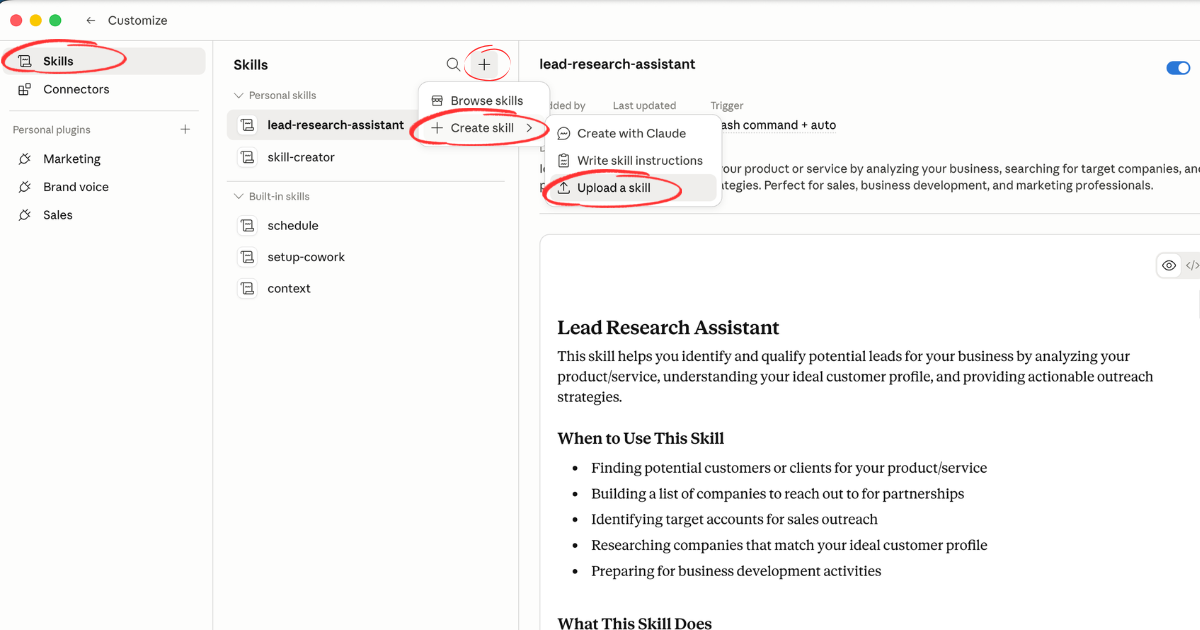
Inside the Customize panel, navigate to Skills. You’ll see a + button in the top-right corner of the Skills section. Click it, then:
- Click Create skill
- Click Upload skill
- Select the
SKILL.mdfile you downloaded in Step 1
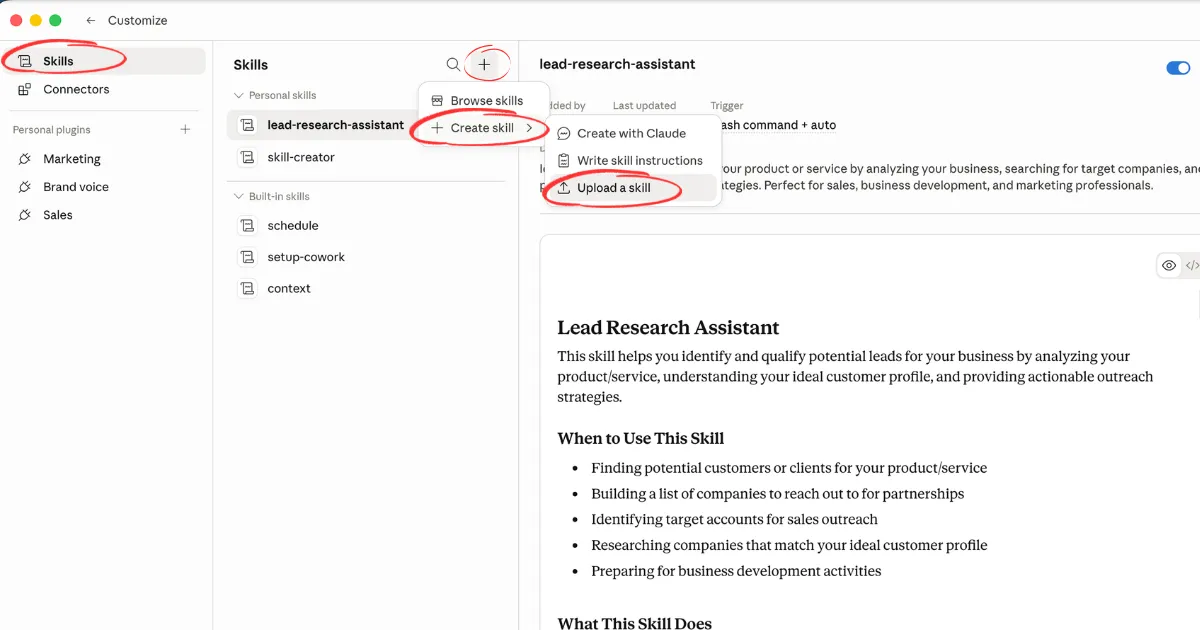
Claude will read and ingest the file. Once uploaded, the skill will appear in your Skills list with its name and a short description pulled from the file.
Step 4: Use the Skill
To invoke the skill, open a conversation in Claude desktop and type the /command associated with the skill. Most skills list their command clearly at the top of the SKILL.md file — for example /lead-research or /linkedin-post.
Claude will then switch into the mode defined by the skill and guide you through whatever inputs it needs to complete the task.
A few tips for getting the most out of skills once they’re installed:
- Read the skill’s instructions once before using it so you know what inputs it expects — the quality of output depends heavily on what you give it
- Keep related skills in the same project so they’re all available in one place without switching contexts
- Customise the SKILL.md file if the default behaviour isn’t quite right for you — it’s just a text file, and even small edits to the tone or output format can make a big difference
- Chain skills together for multi-step workflows — for example, use an ICP research skill first, then pass the output into an outreach writer skill
Building Your Own Skills
Once you’ve used a few community skills, building your own becomes straightforward. A SKILL.md file is just a Markdown file with a clear structure:
- Name and description of the skill
- The /command used to invoke it
- Instructions telling Claude what to do, what to produce, and in what format
- Example inputs/outputs (optional but helpful)
If you have a task you repeat often — a specific type of report, a content format, a research workflow — it’s worth packaging it into a skill. You write the instructions once, and every future session runs it on demand.
Summary
| Step | What to Do |
|---|---|
| 1. Find a skill | Browse the Awesome Claude Skills repo on GitHub |
| 2. Download it | Open SKILL.md and click Download raw file |
| 3. Open Customize | Go to the Claude desktop sidebar → Customize |
| 4. Upload it | Skills → + → Create skill → Upload skill |
| 5. Use it | Type /command in any Claude conversation |
Skills are one of the fastest ways to get more value out of Claude without any additional cost. The community is building new ones constantly — so once you’ve installed one or two, it’s worth checking back regularly to see what’s new.
If you want to go deeper, the top 15 skills post covers the ones I reach for most often, with notes on when and how to use each one.
Liked what you just saw? Follow me on Youtube or connect on LinkedIn for more insights on growing your business online.
Video Guides you might like:
 How to use Claude Code to build Apps
  10 Best Claude Code Skills for beginners
  How to create AI Video Animations with Claude + Remotion
  How to use Claude Code to build a Website
  How to use Claude Skills for beginners
  How to write the PERFECT CLAUDE.md file
  Automate 80% of your Marketing with Claude
  How to use Claude Code — The basics
  Work 2X Faster with Claude Cowork
  How to NEVER Hit Claude Usage Limits Again