· Nas · Technology · 13 min read
Claude Cowork Full Tutorial for Beginners
Most AI tools live inside a chat. Claude Cowork is different - it has access to your computer and can literally do work for you. Here's how to set it up and start using it.
Claude Cowork Full Tutorial for Beginners
Most AI tools live inside a chat, which means you can ask questions and get answers. But then you have to go and do the work yourself. Claude Cowork completely changes this dynamic.
Cowork grants Claude access to designated folders your computer (which you get to choose). That means it can open files, edit documents, connect to your tools, and actually do work on your behalf instead of just telling you how to do it.
In this guide I’m going to walk you through exactly how to set it up, and cover all the key features and functionalities you need to know.
Here’s what we’ll cover:
- Claude Chat vs Claude Cowork — 3 Key Differences
- Pricing
- Setting Up Claude for Desktop
- Adding Instructions and Guardrails
- Settings and Capabilities
- How to First Test Cowork
- Working with Files and Folders
- Connecting Cowork to External Tools
- Adding Skills to Cowork
- Scheduled Tasks
Claude Chat vs Claude Cowork: 3 Key Differences
If you’re already using Claude Chat, you might be wondering: is Cowork really that different? The short answer is yes, very much so. Here are the three main differences:
1. Much Larger Context Window
Cowork has a substantially larger context window than standard Chat. In practice, this means your conversations won’t need to be compacted as often, and less detail gets dropped over long sessions. For complex, multi-step work tasks, this matters a lot.
2. File Access at a Different Scale
In Claude Chat, you can upload up to 20 files per conversation (each up to 30MB) and they’re temporarily stored in the cloud which means they use up your context. In Cowork, Claude operates as an agent directly inside the folders you give it access to. That means it can work with far more files, much larger sizes, and it reads them as needed rather than loading everything into context upfront.
3. Claude Does the Work, Not Just the Thinking
This is the most important difference. In Chat, you get an output, such as a document, a plan, a piece of writing - and then you have to copy it and integrate it into your own files yourself. With Cowork, Claude works directly inside your existing files and edits them in response to your requests.
Chat is: “Here’s what you should do.”
Cowork is: “Don’t worry, I’ll do it for you.”
Watch the Video Tutorial Here
Pricing
Claude Cowork requires a paid Claude subscription - you need to be on at least the Pro plan ($20/month) to access it. The free tier doesn’t include Cowork.
A few things to keep in mind:
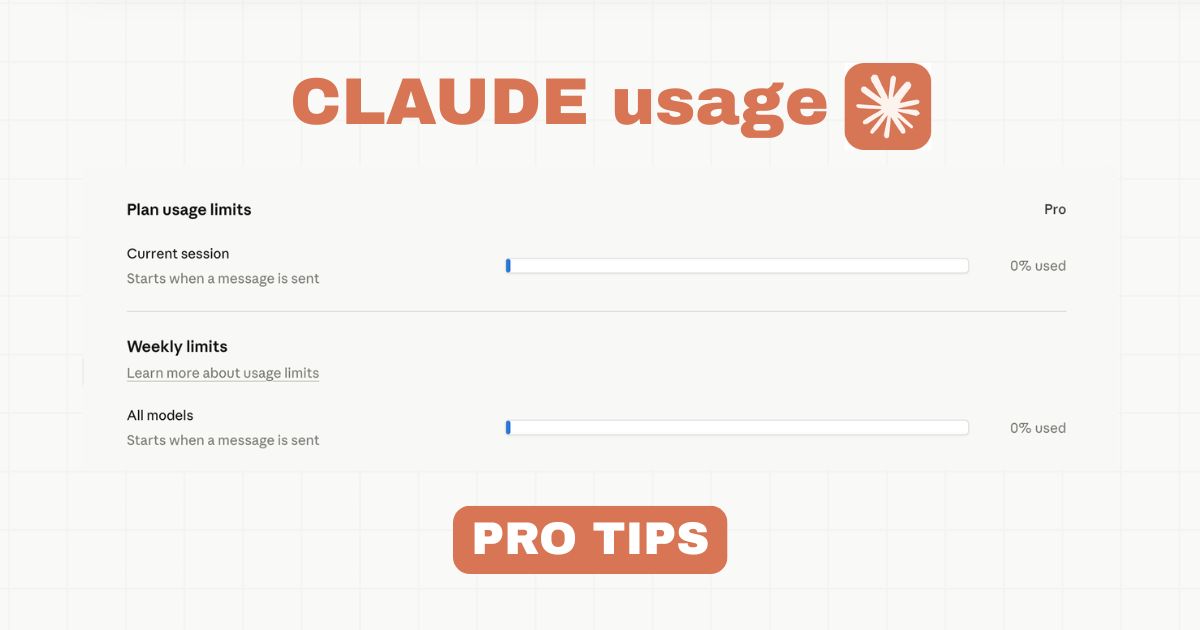
- Usage is shared across your account, not per project. Cowork sessions, Claude Chat, and Claude Code all draw from the same token pool.
- Cowork sessions can be token-heavy since Claude is actively reading files, browsing, and executing tasks. Keep an eye on your usage, especially on the Pro plan.
- You’re never fully blocked - once you hit your limit, Claude offers extra usage at standard API rates so work doesn’t get interrupted.
If you’re planning to use Cowork regularly for work tasks, the Max 5x plan ($100/month) will give you significantly more headroom.
Setting Up Claude for Desktop
To use Cowork, you need the Claude Desktop app — not the web version.
Step 1: Download Claude Desktop
Go to claude.ai/download and download the app for your operating system (Mac or Windows). Install it and sign in with your Claude account.
Step 2: Understand the Three Modes
Inside Claude Desktop, you have access to three different ways of working with Claude:
- Claude Chat — conversational AI for questions, writing, and brainstorming. No file access or computer control.
- Claude Code — connects to your IDE (VS Code, Cursor, Windsurf) for software development. I’ve made a full tutorial on this: Claude Code Full Tutorial for Beginners.
- Claude Cowork — the agent mode. Claude works directly inside folders on your computer and can connect to your tools.
Step 3: Notice the Files Sidebar
As Cowork works on tasks, you’ll see files it creates or modifies appear in a sidebar on the right side of the desktop app. This gives you a live view of what Claude is doing — what’s been created, what’s been edited, and where things are saved.
Your first real build
Build your beautiful website today
Cowork is great for the work. This is for the thing you put your name on. My complete step-by-step pack takes you from a blank screen to a real website, live on your own domain - plus a private 1-on-1 call with me.
Build My Website With Claude →Lifetime access · Beginner friendly · No code needed
Adding Instructions and Guardrails
Before you start using Cowork in earnest, go to Settings → Cowork → Add Instructions.
Because Cowork works directly inside your folders and files, you want guardrails in place before it starts doing anything. This is where you define how Claude should behave — what it should always check before acting, how it should name files, and what it should never touch.
Here’s a template you can copy and paste directly into your Cowork instructions:
Don't break things

- Before you delete, overwrite, or rename anything → show me exactly what's
  changing first and wait for approval
- Stay inside the current working folder. Don't touch anything outside it
  unless I explicitly say so

---

Keep things clean and traceable

- Any new file → add the date at the end like this: June.26
- After every task → give me a quick summary of:
  - What files were created/edited
  - Their exact names
  - Where they're saved

---

Don't run ahead of me

- If a task has multiple steps → outline the plan first before doing anything
- After each major step:
  - Say what you did (short + clear)
  - Say what you're about to do next

---

Extra guardrails

- If something is unclear → ask before acting, don't guess
- Prefer small, reversible changes over big ones
- If a change could have side effects → call it out first
- Keep outputs simple and readable (no unnecessary complexity)
- Default to safe options when unsure
These instructions apply to every Cowork session automatically. Set them once and you won’t have to re-explain them every time.
Settings and Capabilities
With instructions in place, here’s what else to configure:
Enable Dispatch
In Settings → Cowork, toggle on Dispatch. This is what allows Cowork to take autonomous actions. Without it, Claude can read and plan but won’t actually execute anything independently.
Set Global Instructions
Also in Settings, enable Global Instructions for preferences that apply across all sessions — things like:
- “Always use Google Chrome for web browsing.”
- “Save all output files as CSV unless I specify otherwise.”
- “When researching, always check at least three sources before summarising.”
Review Capabilities
In the Capabilities settings, you can control exactly what Cowork is allowed to do. Enable both main capability toggles, but leave location metadata off to protect your location privacy. Scoping access to what you actually need keeps things predictable and safe.
Select Your Model and Working Folder
Before starting a session, select the model you want to use — Sonnet is the right default for most tasks. Then select the specific folder you want Cowork to work in.
Once you’ve done that, type:
/setupThis kicks off the Cowork initialization — Claude reads the folder structure, understands the context of what’s in it, and is ready to start working.
Why folder-scoped access matters: Cowork only touches the folders you explicitly give it access to. That’s the right design. The last thing you want is to hand over unrestricted control of your entire machine without guardrails. Scoped access means Claude works freely within the boundaries you’ve set, while everything else stays untouched.
How to First Test Cowork
Before diving into real work tasks, here’s how I’d recommend getting comfortable with Cowork:
Open a new Project in Claude Desktop and run your first sessions inside it. Claude Projects have persistent memory — even as the conversation grows very long, Claude always retains context about what you’ve discussed, what files exist, and what decisions have been made. You don’t need to re-explain your setup every session.
Then create a new folder on your computer called “Claude Work”. This is your sandbox — the place you point Cowork at when you’re testing and experimenting. It keeps everything contained and means any early mistakes stay isolated to a folder you don’t care about.
Once you’re comfortable with how Cowork behaves and have your guardrails dialled in, you can start pointing it at real working directories.
Ready when you are
Build your beautiful website today
One last thing before you go: if you want the whole build handed to you step by step, this is it. My complete step-by-step pack takes you from a blank screen to a real website, live on your own domain - plus a private 1-on-1 call with me.
Build My Website With Claude →Lifetime access · Beginner friendly · No code needed
Prefer it done for you? Get in touch →
Working with Files and Folders
This is the core of Cowork — the ability to create, edit, and organise files directly inside the folders you give it access to. Here are two practical examples to show what this looks like:
Personal Finance Tracker
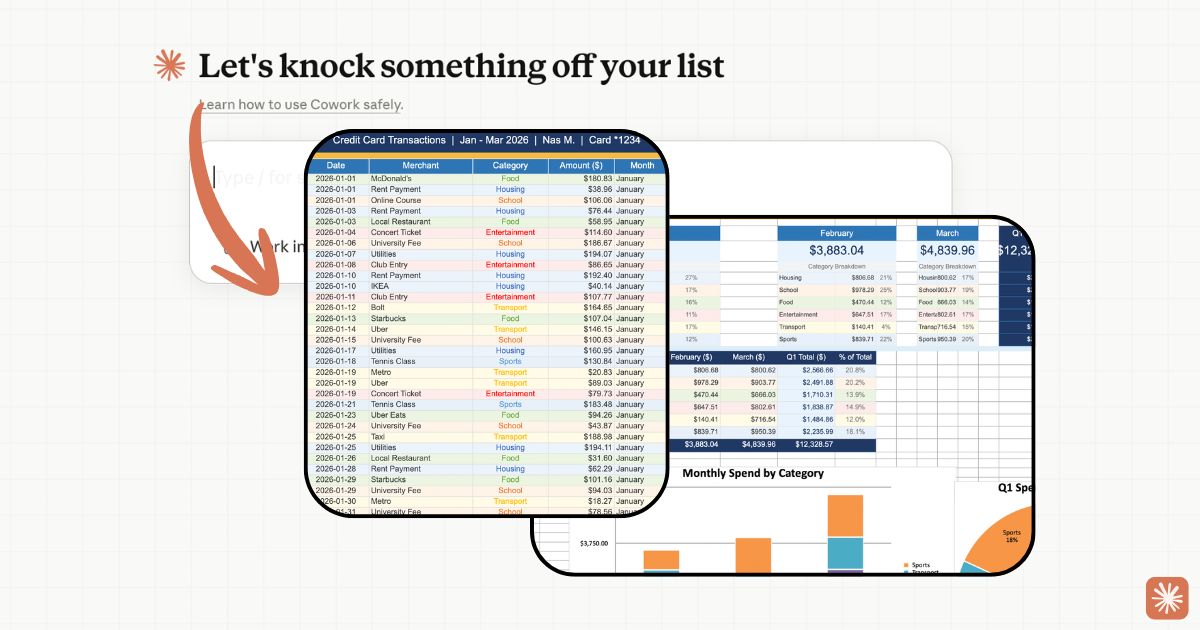
Ask Cowork to build you a finance tracker spreadsheet inside your Claude Work folder. From that point on, whenever you drop a receipt image into the folder, or just type in a purchase, Cowork updates the tracker — categorising the spend, updating totals, and keeping everything current.
You can also upload a credit card statement at the end of the month and ask Cowork to categorise every transaction by type (food, transport, subscriptions, etc.) and add it to the tracker. What used to take an hour of manual work becomes a one-line prompt.
Breaking Down a PDF
Drop any PDF into your working folder — a contract, a report, a research paper — and ask Cowork to extract the key information, summarise the sections, or turn it into a structured document. Cowork reads the file directly and produces the output inside the same folder, named and dated according to your instructions.
Connecting Cowork to External Tools
Cowork doesn’t just work inside your files — it can also connect to external tools and services, letting Claude take actions across the apps you already use.
To set this up: Settings → Customize → Connectors → + → Browse Connectors
From there you can add integrations with tools like Google Calendar, email, and more. Once connected, Claude can interact with those tools as part of a task — reading data from them, creating entries, or triggering actions.
Example — Calendar integration: Connect Cowork to your Google Calendar and you can ask things like:
“Look at my calendar for next week and prepare a briefing doc with all my meetings, the attendees, and any prep notes I should have ready.”
Or the other way around — after a planning session, ask Cowork to create the calendar events directly from the decisions you’ve made together.
The combination of file access and tool connectivity is what makes Cowork genuinely powerful. It’s not just reading and writing — it’s connecting your work across the tools that run your day.
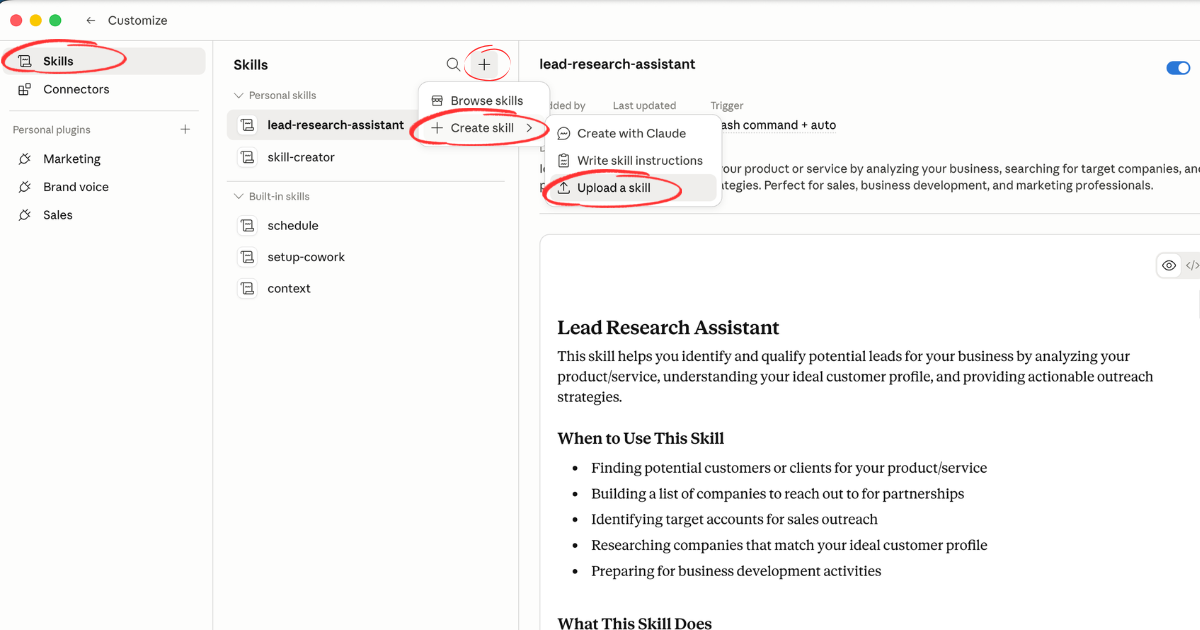
Adding Skills to Cowork
Just like Claude Code, Cowork supports Skills — markdown files that give Claude a specialist capability for a specific type of task.
Skills install once and apply automatically whenever they’re relevant. For example, the Remotion skill gives Claude the ability to generate programmatic videos using the Remotion framework — product demos, social content, animated presentations — directly from a prompt inside your working folder.
To install a skill, use:
/skills install [skill URL]Once installed, the skill is available in every Cowork session. You can layer multiple skills together for more complex workflows — for example, pairing a brand guidelines skill with a content creation skill so every output stays on-brand automatically.
For a full list of recommended skills to install, check out: Top 10 Claude Code Skills — How to Start Using Them.
Scheduled Tasks
Scheduled Tasks aren’t a new concept, but Cowork’s implementation of them is seamless. You can set up tasks to run automatically on a schedule — and because Cowork has access to your tools and files, it can actually complete those tasks end-to-end without you being there.
Example — Morning email summary:
Set up a scheduled task that runs every morning at 8am. Cowork checks your inbox, pulls the most important emails from the last 24 hours, and sends you a clean summary — or drafts replies and queues them for your review.
You define the task once: what to do, when to run it, and what the output should look like. Cowork handles the rest on schedule, every time.
This is the step that takes Cowork from “a tool I use when I remember to” to “something that’s working in the background on my behalf, every day.”
Think about the tasks you do every week that follow a pattern — reporting, research, content creation, file management. Once you’ve mapped those out, Cowork turns them from manual effort into a prompt. And with scheduled tasks, even the prompting becomes optional.
Nas’ Note: This Is What AI Assistance Actually Means
Chat-based AI is useful. But Cowork is what “AI doing work for you” actually looks like in practice. It’s not a smarter search engine or a faster way to write emails. It’s a system that can work inside your files, connect to your tools, run on a schedule, and hand you back results — without you having to be in the room.
Set it up with your guardrails, point it at a test folder, and give it one real task from your week. See what comes back. Then build from there.
That’s how you go from “I use Claude sometimes” to “Claude handles things I used to spend hours on.”
Liked what you just saw? Follow me on Youtube or connect on LinkedIn for more insights on growing your business online.
Video Guides you might like:
 How to use Claude Code to build Apps
  10 Best Claude Code Skills for beginners
  How to create AI Video Animations with Claude + Remotion
  How to use Claude Code to build a Website
  How to use Claude Skills for beginners
  How to write the PERFECT CLAUDE.md file
  Automate 80% of your Marketing with Claude
  How to use Claude Code — The basics
  Work 2X Faster with Claude Cowork
  How to NEVER Hit Claude Usage Limits Again