· Nas · Technology · 9 min read
How to Reduce Claude Token Usage and Avoid Usage Limits
Hitting Claude's usage limits after just a few messages? Here are 10 practical ways to stretch your Claude Pro plan further and get more done without constantly running into the wall.
How to Reduce Claude Token Usage and Avoid Usage Limits
In the past few months, Claude completely took over the AI race. But the hype faded quickly for a lot of people when they started running into this one message: “Your limit has been hit.”
At first you think, “Maybe I just used Claude a little too much, I’ll just wait a couple of hours.” But at some points, it starts feeling like you send 2 or 3 messages and you’re already at the limit. If this is happening for you, know that you’re not the only one, because thousands of people have been reporting this exact frustration.
So in this post, I’m going to share 10 ways to reduce your Claude token usage so you hit your limits a lot less frequently. And if you don’t think this is possible, I built the full LeadLanding application on the Claude Pro plan, in just a few weeks. It’s very doable if you know how to work the system.
Let’s get into it.
First: Track Your Actual Usage
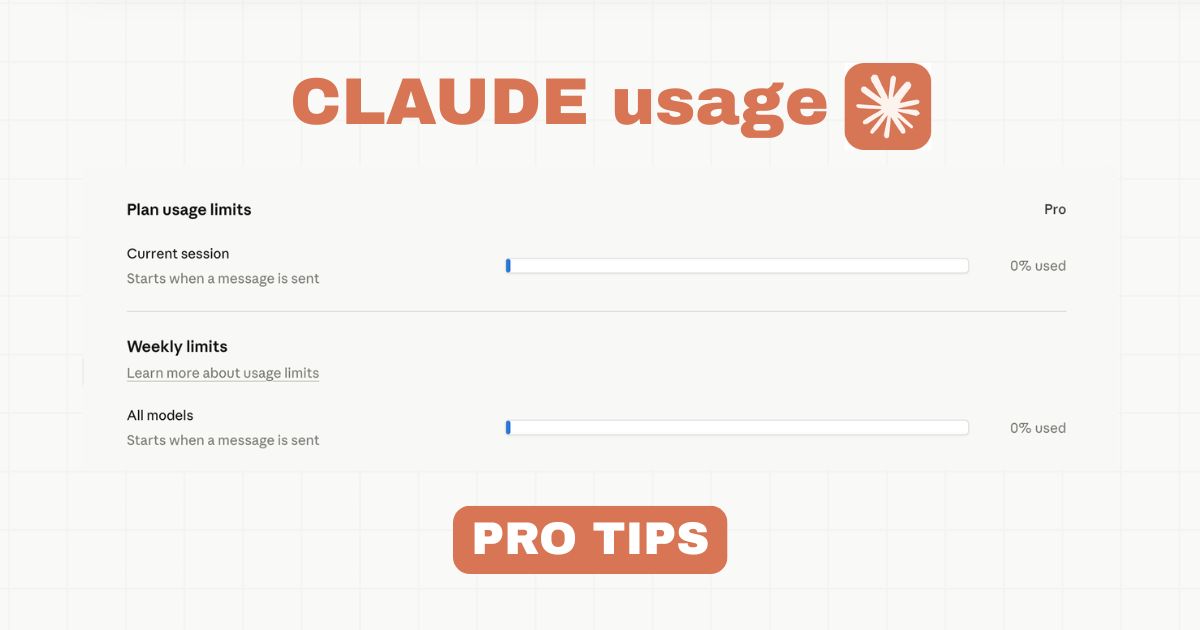
You can’t fix what you can’t measure. The official interface only shows a progress bar, which tells you very little about where your tokens are actually going.
The best built-in tool is the /context command inside Claude Code. Type it at any point during a session and you’ll see exactly how much of your context window has been consumed, including input tokens, output tokens, and cached tokens broken out separately. This gives you a real picture of how heavy a conversation is getting, so you know when to compact or start fresh before you burn through your limit.
Now, here are the 10 ways to bring that number down.
Put those tokens to work
Build your beautiful website today
Now you've got the headroom, build something with it. My complete step-by-step pack takes you from a blank screen to a real website, live on your own domain - plus a private 1-on-1 call with me.
Build My Website With Claude →Lifetime access · Beginner friendly · No code needed
Prefer it done for you? Get in touch →
Watch my video tutorial on how to reduce Claude tokens Usage and increase usage limits:
1. Use the Edit Button for Corrections
When Claude gets something wrong, do not send a follow-up message to correct it. Every new message adds to the history that Claude must re-read in full before responding. The more back-and-forth you have, the heavier the context load becomes.
Instead: click Edit on your original prompt, fix the wording, and hit regenerate. This replaces the old exchange rather than stacking on top of it. One turn instead of two and your context stays lean.
This is one of the simplest changes you can make and it compounds fast over a long session.
2. Start a Fresh Chat Every 15–20 Messages
Long threads burn tokens just to reread old history, even the parts that are no longer relevant. By the time you’re 40 messages deep, a significant portion of every response is Claude catching up on what happened earlier in the conversation.
The fix: start a new chat every 15–20 messages. If you need to carry over context, ask Claude to summarize the conversation first, copy that summary, and paste it as the opening message in the new chat. You keep what matters, you ditch the bloat.
In Claude Code, you can also use /compact to compress history automatically, or /clear to wipe the conversation entirely and start fresh.
3. Batch Questions into One Prompt
Three separate prompts require three full context loads. That means Claude re-reads your entire conversation history three times instead of once.
Instead, put all your tasks into a single prompt:
- Summarize this Document
- Edit the font of the text in the page
- Adjust the animation in the hero section to match the theme of the page
You get better results because Claude sees all of your requests at once, and you burn less context because it doesn’t require a back and forth interaction. This single habit can cut your token usage by a third on task-heavy sessions.
4. Use the Projects Feature for Recurring Files
If you upload the same document to multiple separate chats, it gets re-tokenized every single time. That’s a significant waste if you’re referencing the same brief, style guide, or dataset repeatedly.
Use Claude Projects instead. Upload the file once inside a Project so that it gets cached, and every new conversation within that Project can reference it without consuming extra tokens. This is especially useful for anything you work with regularly: brand guidelines, SOPs, reference documents, code files.
If you’re using Claude Cowork, this is even more powerful because Projects have persistent memory that carries context across sessions automatically.
5. Set Up Memory and User Preferences
Stop opening every prompt with “Act as a professional copywriter with 10 years of experience” or a paragraph of style instructions. Those repeated instructions consume tokens on every single request.
Go to Settings → Memory and User Settings and save your default role, communication style, and any standing instructions you use regularly. Claude will apply them automatically to every new chat, without you having to write them out, and without them counting against your usage.
6. Turn Off Unused Features
Some features add tokens to every response whether you asked for them or not:
- Web search connectors - if you’re not actively using them, turn them off
- Explore mode - adds overhead you don’t always need
- Advanced Thinking - this is the big one. Leave it off by default and only enable it if your first attempt at a complex task wasn’t good enough
Advanced Thinking is powerful, but it consumes significantly more tokens than standard responses. It’s worth it when you need it, not as a default setting.
7. Use Haiku for Simple Tasks
Choosing the right model is a critical daily decision that most people don’t think about. Not every task needs Opus or Sonnet.
Use Haiku for:
- Grammar checking and proofreading
- Brainstorming lists and ideas
- Formatting or restructuring existing content
- Quick translations
- Simple Q&A
Haiku handles these tasks at a fraction of the cost of heavier models. Save Sonnet for development work and multi-step tasks, and Opus only for genuinely complex reasoning or architectural problems.
You can switch models anytime in Claude Code using /model. Make it a habit to consciously choose before you start a task.
8. Drop the Fluff
Every word in Claude’s response counts against your limit, and that includes the polite filler. “Great question! I’d be happy to help with that. Here’s what I’d suggest…” adds no value and costs you tokens.
There are a few ways to fix this:
- Add a standing instruction in your User Settings (see tip 5): “Skip pleasantries. Get straight to the answer. Be concise.”
- Use a skill - the “Caveman” style skill strips all filler and returns only the substance
- Explicitly include it in your prompt: “Give me the answer only, no preamble”
Reducing response fluff can save a meaningful chunk of tokens over a full working session, especially if you’re doing a lot of back-and-forth.
9. Spread Work Across the 5-Hour Window
Claude Pro uses a rolling 5-hour window, not a midnight-to-midnight daily reset. Messages sent at 9:00 AM are no longer counted by 2:00 PM.
This means you can stretch your usage significantly by splitting your work into two or three sessions: morning, afternoon, evening, rather than burning through everything in one sitting. By the time your second session starts, your earlier usage has partially (or fully) fallen off the window.
Plan heavy tasks for the start of each window and lighter tasks toward the end.
10. Work During Off-Peak Hours
The system processes requests faster and more generously during off-peak hours. Peak usage runs roughly 5:00 AM to 11:00 AM PST on weekdays - that’s when demand is highest and session limits feel tightest.
Running resource-intensive tasks in the evening or on weekends can meaningfully stretch how far your plan goes. It won’t change your official token limit, but you’ll run into throttling and slowdowns less often, which makes your sessions feel smoother and more productive.
Putting It All Together
Here’s a quick reference for the 10 tips:
| Tip | What to Do |
|---|---|
| Track usage | Run /context to see your real token breakdown |
| Edit, don’t reply | Use the Edit button on prompts instead of follow-ups |
| Fresh chats | Start a new chat every 15–20 messages |
| Batch prompts | Combine multiple tasks into one message |
| Use Projects | Upload recurring files once, not repeatedly |
| Save preferences | Set role and style in Memory/User Settings |
| Turn off extras | Disable web search, explore mode, Advanced Thinking |
| Use Haiku | Switch to Haiku for simple, fast tasks |
| Drop fluff | Prompt or skill Claude to skip filler |
| Spread sessions | Use the rolling window across morning/afternoon/evening |
| Work off-peak | Run heavy tasks evenings and weekends |
None of these tips require a plan upgrade. They just require using Claude more intentionally. Apply all ten and you’ll get significantly more out of the same plan, I built a full product on Pro and still have headroom most weeks.
If you want help setting up a clean, efficient Claude workflow for your business or product, get in touch - that’s exactly what I help with.
Liked what you just saw? Follow me on Youtube or connect on LinkedIn for more insights on growing your business online.
Video Guides you might like:
 How to use Claude Code to build Apps
  10 Best Claude Code Skills for beginners
  How to create AI Video Animations with Claude + Remotion
  How to use Claude Code to build a Website
  How to use Claude Skills for beginners
  How to write the PERFECT CLAUDE.md file
  Automate 80% of your Marketing with Claude
  How to use Claude Code — The basics
  Work 2X Faster with Claude Cowork
  How to NEVER Hit Claude Usage Limits Again