· Nas · Technology · 14 min read
How to Start Using Claude Skills - Top 15 Skills to Copy Right Now
Claude Skills are reusable slash commands that supercharge what Claude Code can do. Learn what they are, how to install them from GitHub in the terminal or Claude.ai, and discover 15 must-have skills covering video, documents, testing, and more.

How to Start Using Claude Skills — Top 15 Skills to Copy Right Now
If you’ve been using Claude Code for a while, you’ve already discovered how powerful it is for building software, writing, and automating workflows. But most people are still missing one of its best features: Claude Skills.
Skills are essentially custom slash commands — reusable, shareable prompts packaged as markdown files — that you can drop into Claude Code and invoke instantly with a single /command. The community has built hundreds of them, and the best ones are sitting on GitHub right now, ready for you to copy in under a minute.
In this guide, I’ll walk you through exactly what Claude Skills are, how to install them from GitHub both in the terminal and in the Claude.ai app, how to understand (and write) a skill file yourself, and then give you 15 of the best skills available with direct links.
What Are Claude Skills?
Claude Skills (also called custom slash commands) are .md files that contain a set of instructions telling Claude exactly how to behave when you invoke a specific command. Think of them as saved, reusable workflows.
When you install a skill called pdf, typing /pdf inside Claude Code immediately activates the full set of instructions in that file — no copy-pasting prompts, no re-explaining context every session. Claude just knows what to do.
Skills can be:
- Personal — saved to
~/.claude/commands/and available in every project on your machine - Project-specific — saved to
.claude/commands/inside a single repo, shareable with your team via Git
Skills are different from Claude’s built-in tools. They don’t require API keys or integrations on their own — they’re just well-crafted instructions that tell Claude how to approach a task, what tools to use, and how to respond. The power comes from the community’s collective knowledge baked into each file.
How to Install Claude Skills in the Terminal (Claude Code)
This is the fastest route. You’ll need Claude Code installed and a terminal open.
Step 1: Create the global commands directory
mkdir -p ~/.claude/commandsThis is where Claude Code looks for skills that are available across all your projects.
Step 2: Download a skill from GitHub
You can either download a single file with curl, or clone a full repository and copy what you need.
Option A — Download a single skill file:
# Example: download the PDF skill from Anthropic's official skills repo
curl -o ~/.claude/commands/pdf.md \
  https://raw.githubusercontent.com/anthropics/skills/main/skills/pdf/pdf.md
Replace the URL with the raw file URL of any skill you want. On GitHub, open the .md file and click the Raw button to get the direct URL.
Option B — Clone a repo and copy the skills you want:
# Clone the Anthropic skills repo
git clone https://github.com/anthropics/skills.git

# Copy a skill to your global commands folder
cp skills/skills/pdf/pdf.md ~/.claude/commands/

# Copy multiple skills at once
cp skills/skills/pptx/pptx.md ~/.claude/commands/
cp skills/skills/docx/docx.md ~/.claude/commands/
cp skills/skills/xlsx/xlsx.md ~/.claude/commands/
Step 3: Use the skill in Claude Code
Open Claude Code in any project and type the skill name as a slash command:
/pdf
/pptx
/brainstorming
Claude will immediately follow the instructions defined in that skill file.
Project-specific skills
If you want a skill to only be available inside one project — useful when working with a team:
mkdir -p .claude/commands
cp ~/path-to-skill/skill.md .claude/commands/
Commit the .claude/commands/ folder to Git so everyone on the team gets the skill automatically.
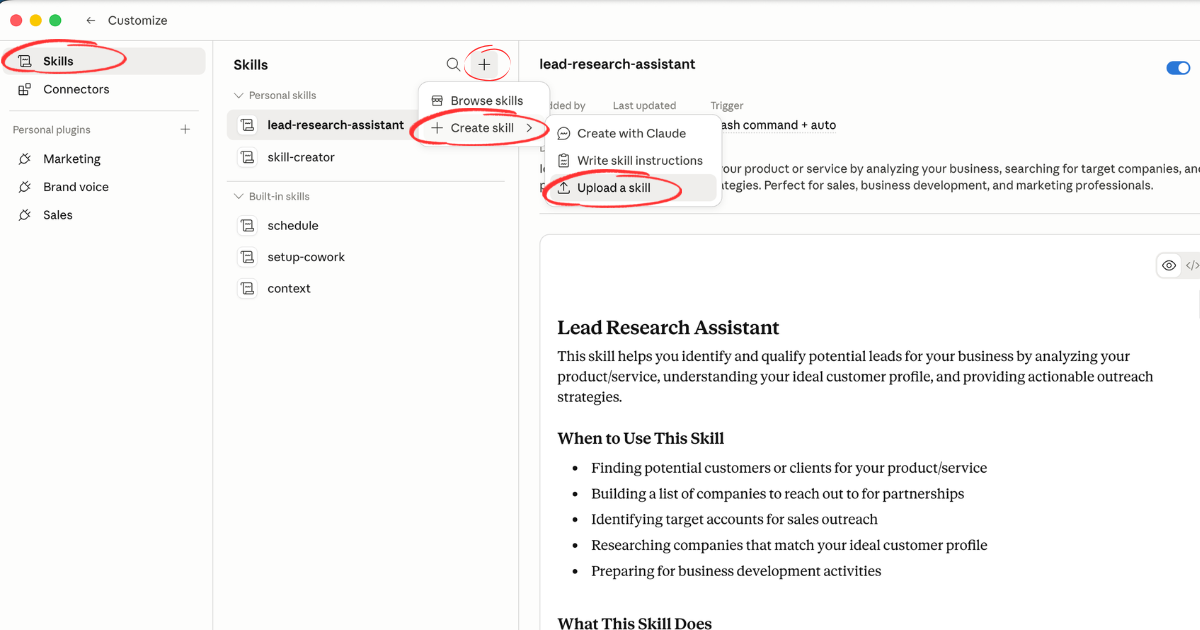
How to Add Claude Skills in Claude.ai (Web & Desktop App)
If you’re using Claude.ai in the browser or the desktop app without the full CLI setup, you can still use skills through Projects.
Step 1: Get the skill file content from GitHub
- Go to the skill’s GitHub page (links listed below)
- Open the
.mdfile inside the skill folder - Click Raw in the top-right corner of the file viewer
- Select all (
Cmd+A/Ctrl+A) and copy the entire content
Step 2: Add it to a Claude Project
- Open claude.ai and go to Projects
- Create a new project or open an existing one
- Click Project instructions (or Add instructions)
- Paste the skill content into the instructions field
- Save
Now, every conversation inside that project will have Claude operating with those skill instructions active by default. You can also upload the .md file directly as a project document if you prefer to keep the instructions as a reference file.
Tip: Create a separate Project for each skill category — one for document work (PDF, DOCX, XLSX), one for content creation, one for coding tasks. This keeps things clean and focused.
Understanding the Skill.md File Structure
Before diving into the list, it helps to understand what a skill file actually looks like under the hood. This way, you can customise existing skills or build your own from scratch.
Here is the general structure of a skill file:
---
name: skill-name (a unique identifier, lowercase, hyphens for spaces)
description: One-line description of what this skill does (used in autocomplete)
---

# Skill Name

## Overview
Brief explanation of what this skill is for and when to use it.

## Instructions
The core prompt — detailed instructions telling Claude exactly how to behave,
what tools to call, what format to respond in, and what edge cases to handle.

## Usage
/skill-name [optional arguments]

## Examples
Concrete examples of how to invoke the skill and what output to expect.
The name is the identifier you type as /name in Claude Code. The description in the frontmatter is what shows up in the autocomplete list when you type /. Everything else is the actual prompt Claude reads when you invoke the command.
A minimal example you can copy
Here is a simple skill you could create yourself — a /standup command that formats a daily standup update:
---
name: standup
description: Generate a formatted daily standup update from your recent work
---

# Daily Standup Generator

## Instructions
When invoked, review the recent git commits, open files, and any context the user provides,
then generate a concise daily standup update in this format:

**Yesterday:** [what was completed]
**Today:** [what is planned]
**Blockers:** [any impediments, or "None"]

Keep each section to 1–3 bullet points. Use plain language, not technical jargon.
If no git history is available, ask the user to describe their recent work in one sentence.

## Examples
/standup
/standup I finished the landing page and fixed the auth bug
/standup - include sprint goals in today's section
Save this as ~/.claude/commands/standup.md and type /standup in Claude Code. That’s all it takes.
Skills installed. Now build
Build your beautiful website today
Skills are the toolkit. This is the project to point them at. My complete step-by-step pack takes you from a blank screen to a real website, live on your own domain - plus a private 1-on-1 call with me.
Build My Website With Claude →Lifetime access · Beginner friendly · No code needed
Top 15 Claude Skills to Install Right Now
Here are 15 of the best community-built skills available on GitHub. Each one is ready to download and use immediately.
1. 🎬 AI Video Creation (Remotion)
GitHub: remotion-dev/skills — remotion
Remotion is a framework for creating videos programmatically using React and TypeScript. This skill gives Claude deep knowledge of the Remotion API, component structure, and rendering pipeline. Instead of manually writing boilerplate, you describe the video you want and Claude generates the full Remotion project — animations, timing, and all. If you’re building programmatic video content, social clips, or data-driven video reports, this skill is a game-changer.
2. 📥 Video Downloader
GitHub: ComposioHQ/awesome-claude-skills — video-downloader
Download videos from YouTube, Vimeo, Twitter/X, and other platforms directly from your terminal with Claude handling all the command options for you. This skill wraps tools like yt-dlp with intelligent defaults — you specify what you want (resolution, format, subtitles, timestamp clip) in plain English and Claude generates the right command. No more memorising obscure flags.
3. 🖼️ Image Enhancer
GitHub: ComposioHQ/awesome-claude-skills — image-enhancer
Enhance, resize, convert, and process images using AI-powered tools and standard image manipulation libraries. This skill handles batch processing, format conversion (PNG, WebP, JPEG), background removal, and quality upscaling. Particularly useful when preparing assets for websites, blog posts, or product listings at scale without leaving the terminal.
4. 🎙️ YouTube Transcript Extractor
GitHub: michalparkola/tapestry-skills — youtube-transcript
Paste a YouTube URL and get the full transcript extracted, cleaned, and ready to use. From there, you can ask Claude to summarise it, pull out key quotes, turn it into a blog post, or extract action items — all within the same session. Invaluable for researchers, content creators, and anyone who learns from video content but wants text they can work with.
5. 📣 Internal Communications
GitHub: anthropics/skills — internal-comms
Writing internal company communications — all-hands updates, team announcements, policy changes, incident reports — is a skill that takes time and care. This skill from Anthropic’s official repo gives Claude a professional framework for drafting these documents. It applies consistent tone, appropriate formality, and clear structure so your internal messages actually get read. A must-have for founders and team leads who write a lot of internal docs.
6. ✍️ Content Research Writer
GitHub: ComposioHQ/awesome-claude-skills — content-research-writer
This skill combines web research with structured content writing. Give Claude a topic and it will research it, synthesise the key points, and produce a well-structured draft — blog post, LinkedIn article, newsletter section, or landing page copy. It goes beyond simple generation by applying research principles: looking for primary sources, contrarian takes, and recent data rather than recycling what’s already out there.
7. 💡 Brainstorming
GitHub: obra/superpowers — brainstorming
Structured brainstorming that actually produces useful ideas, not just a list of obvious suggestions. This skill applies divergent thinking frameworks — SCAMPER, random stimulus, reverse brainstorming, “yes, and” expansion — to push Claude past surface-level answers. Great for product ideation, campaign concepts, naming exercises, or working through business problems that feel stuck. The difference between this and just asking “give me ideas” is dramatic.
8. 🌐 Web Artifacts Builder
GitHub: anthropics/skills — web-artifacts-builder
Build interactive web components — charts, forms, games, calculators, visualisations — that render live inside Claude’s interface as HTML/CSS/JS artifacts. This skill specialises Claude in writing clean, self-contained web code that works without any build step. Use it when you want to prototype a UI component quickly, create an interactive demo, or build a small tool without spinning up a full project.
9. 📊 Excel / XLSX Manipulation
GitHub: anthropics/skills — xlsx
Read, create, and modify Excel spreadsheet files programmatically. This skill knows how to work with libraries like xlsx and openpyxl to parse existing spreadsheets, run calculations, restructure data, generate charts, and output clean .xlsx files. Give it a spreadsheet and a task — “pivot this data by region”, “add a summary row to each sheet”, “merge these two workbooks” — and it handles the code.
10. 📄 PDF Skill
GitHub: anthropics/skills — pdf
Extract text from PDFs, analyse their structure, search for specific content, split pages, merge files, and work with PDF metadata — all without leaving your terminal. This skill is from Anthropic’s official repo and is one of the most polished available. It’s particularly useful for processing contracts, research papers, reports, and any workflow where you’re regularly dealing with PDF documents at volume.
11. 📑 PowerPoint Creator
GitHub: anthropics/skills — pptx
Generate fully formatted PowerPoint presentations from scratch. Describe the presentation you need — topic, number of slides, tone, data to include — and this skill produces a .pptx file with proper slide layouts, headings, bullet points, and basic styling. Useful for creating investor decks, client proposals, internal training materials, or any presentation that currently eats up too much of your time.
12. 📝 Word Document Creator
GitHub: anthropics/skills — docx
Create and edit Microsoft Word .docx files programmatically. This skill handles document structure, formatting, styles, tables, headers and footers, and embedded images. Use it to generate templated documents at scale — contracts, proposals, reports, letters — or to process and reformat existing Word files as part of an automated workflow.
13. 🗂️ File Organiser
GitHub: ComposioHQ/awesome-claude-skills — file-organizer
Intelligently organise files and folders based on rules you describe in plain English. “Move all PDFs from Downloads to Documents/Reports and rename them by date”, “organise these photos by year and month”, “delete any file over 2 years old that hasn’t been modified”. This skill is particularly powerful when you have hundreds of files that need sorting and the manual effort is just not worth it.
14. 🧪 Web App Testing
GitHub: anthropics/skills — webapp-testing
Automated testing for web applications. This skill specialises Claude in writing end-to-end tests using frameworks like Playwright or Puppeteer, generating unit tests, setting up test suites, and interpreting test results. If you’re building web apps with Claude Code, this is the companion skill that helps you make sure what you’ve built actually works — across browsers, across user flows, at every stage of development.
15. 🎤 Meeting Insights Analyzer
GitHub: ComposioHQ/awesome-claude-skills — meeting-insights-analyzer
Paste in a meeting transcript or upload your notes and this skill extracts everything that matters: key decisions made, action items with owners and deadlines, open questions still unresolved, and a concise summary you can share with people who weren’t there. For founders and managers running back-to-back calls, this is one of the highest-ROI skills on the list — it turns a 45-minute recording into a 2-minute read in seconds.
Building Your Own Skills
Once you’ve used a few community skills, you’ll start noticing patterns: they’re just well-crafted prompts with a clear structure. If there’s a workflow you repeat constantly — a specific way you want Claude to review code, a template you always use for client emails, a research format that works for your industry — you can package it as a skill.
The process is simple:
- Write the instructions you’d normally type into Claude, but in a reusable, generalised form
- Save the file as
command-name.mdin~/.claude/commands/ - Add a
name:anddescription:line in the frontmatter for autocomplete - Invoke it with
/command-name
The more specific and opinionated your skill, the more useful it becomes. Generic instructions produce generic output. Skills that know your exact workflow produce output that actually fits.
Ready when you are
Build your beautiful website today
One last thing before you go: if you want the whole build handed to you step by step, this is it. My complete step-by-step pack takes you from a blank screen to a real website, live on your own domain - plus a private 1-on-1 call with me.
Build My Website With Claude →Lifetime access · Beginner friendly · No code needed
Prefer it done for you? Get in touch →
Wrapping Up
Claude Skills are one of those features that look small but compound quickly. Each skill you install removes a category of friction from your workflow. After a few weeks of using them, you’ll find yourself reaching for /pdf, /brainstorming, or /standup without thinking — they just become part of how you work with AI.
Start with two or three from this list that match what you’re already doing, understand how they’re structured, then build your first custom one. That’s when the real leverage kicks in.
If you want to go deeper on Claude Code and building with AI in general, check out my guide on how to use Claude Code as a non-technical founder and my post on writing the perfect CLAUDE.md file to supercharge your project context.
The skills are free, the setup takes minutes, and the time you’ll save compounds every single day.
Video Guides you might like:
 How to use Claude Code to build Apps
  10 Best Claude Code Skills for beginners
  How to create AI Video Animations with Claude + Remotion
  How to use Claude Code to build a Website
  How to use Claude Skills for beginners
  How to write the PERFECT CLAUDE.md file
  Automate 80% of your Marketing with Claude
  How to use Claude Code — The basics
  Work 2X Faster with Claude Cowork
  How to NEVER Hit Claude Usage Limits Again