· Nas · Technology · 13 min read
How to Edit Videos in Claude Code: 45 Editing Styles with HyperFrames and /effects
Install HyperFrames in Claude Code, one-shot your first AI video, then add a free GitHub skill that gives you 45 editing styles (orbit, spotlight, glass widgets and more) with one shortcut each. Full list included.
How to Edit Videos in Claude Code
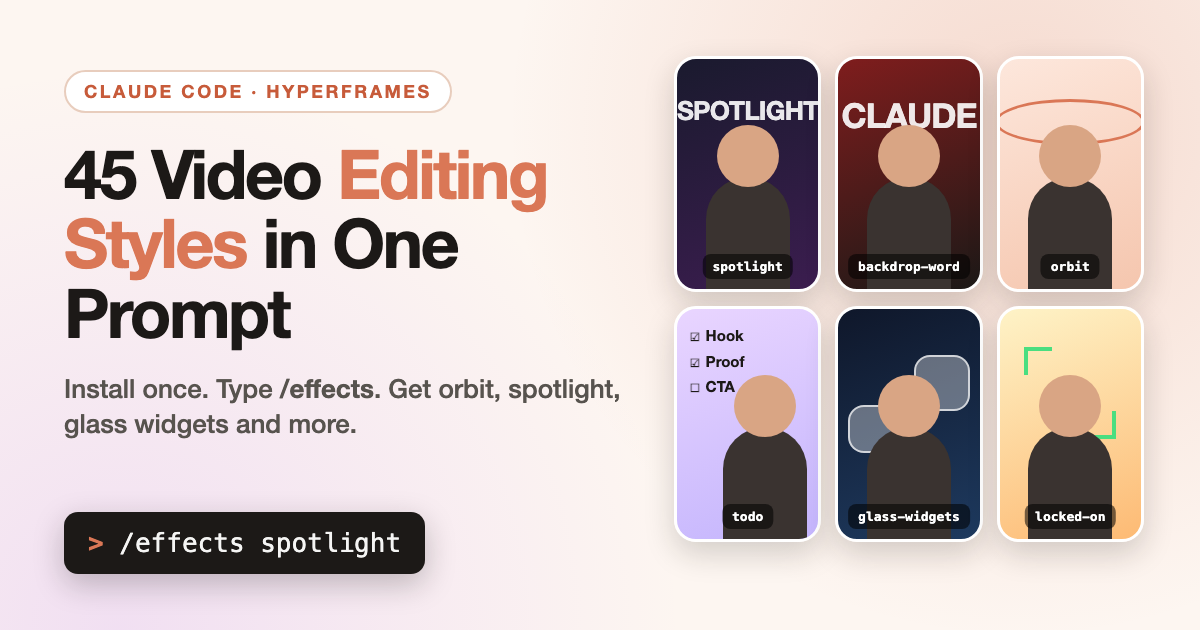
45 editing styles, each one a single shortcut
Video editing usually means a timeline, a subscription, and an hour you didn’t plan to spend. Inside Claude Code, it can mean typing a short command.
In this post I’ll show you the full setup, in order:
- How to install HyperFrames in Claude Code (free and open source).
- How to one-shot prompt a finished AI video, and where to find inspiration.
- How to download a free GitHub repository of 45 editing styles into Claude Code.
- How to use each style as a shortcut, with the complete list of all 45.
The repository is called claude-video-effects, created by Vibha Ramprakash. Drop your video into Claude, type /effects and the name of a style, and that’s the whole edit.
A quick note on how the two tools fit together. HyperFrames builds videos from a prompt (product demos, explainers, motion graphics). The /effects skill edits a talking-head video you already filmed. They’re two different jobs, and they pair well, which is why I’m covering both in one guide.
What You Need Before You Start
- Claude Code. HyperFrames and skills both run inside Claude Code, not in the normal Claude chat. New to it? Start with my beginner’s guide to Claude Code.
- A paid Claude plan. I use the $20/month Pro plan. Video work uses more of your limit than chat, so keep clips short and see my guide on reducing Claude token usage if you hit limits often.
- A short, vertical video of yourself (for the
/effectspart). The repo says vertical phone videos with you in frame work best.
You do not need to install ffmpeg or Python yourself. The effects skill sets them up on its first run.
Step 1: Install HyperFrames in Claude Code
HyperFrames is an open-source video framework from HeyGen. Claude writes your video as code (HTML), then renders it to a normal MP4. The tool itself is free.
Open Claude Code and run these two commands, one after the other.
1. Add the HyperFrames marketplace:
2. Install the plugin:
3. Open a new tab. Re-open Claude Code in a fresh tab so the plugin becomes active. If you skip this, Claude won’t see HyperFrames yet.
Install it here, not through “Customize”. Adding HyperFrames as a connector from Claude’s Customize menu sends you to a HeyGen sign-up with usage-based billing. The two commands above are the free, open-source route. I explain this in detail in my full HyperFrames tutorial.
Step 2: One-Shot Your First AI Video
“One-shot” means you describe the whole video in a single prompt and let Claude build it end to end: script, scenes, animation, render. No back-and-forth to get a first draft.
Create a folder for the project, open it in Claude Code, and drop in anything you want used (logos, screenshots). Then paste a prompt like this one and swap in your own details:
Claude plans the scenes, writes the composition, and renders the file. If something is off, tell it what to change the same way you’d brief an editor: “slow the transitions down” or “make the headline bigger.”
Three habits that make one-shot prompts work:
- State the length and format. “15 seconds, vertical” beats “a short video.”
- Write the exact call to action. Don’t leave the closing line to chance.
- Add real assets. Your logo and screenshots make it look like your brand, not a template.
Where to get inspiration for your videos
If you’re not sure what to ask for, browse the HyperFrames examples gallery. It shows what’s possible, grouped into:
- Launch films and motion graphics: product launches and type-led motion.
- Talking-head edits: the editing style of popular Reels, TikToks and Shorts.
- 1:1 recreations: original videos shown beside their HyperFrames versions.
- Most-installed blocks: reusable pieces like charts, logo outros and callouts.
- Project templates: starting points you can scaffold in one command.
You can use any example two ways. To add a single block to your project, run npx hyperframes add <block>. To start a full project from an example, run npx hyperframes init my-video --example <name>.
The trick I use: find an example you like, tell Claude to work out what makes it good, then ask it to recreate that style for your own content. That works far better than describing a style from scratch.
Step 3: Download the 45 Editing Styles from GitHub
HyperFrames builds videos from nothing. The next tool does something different: it edits footage you’ve already filmed, using a library of 45 styles, each one a shortcut you type into Claude Code.
It lives in the claude-video-effects repository. It’s a Claude skill, which means Claude Code loads it from a folder on your computer.
Option A: one command. Open the terminal inside Claude Code (or the Terminal app) and paste this:
On Windows (PowerShell), use $HOME\.claude\skills\effects instead of ~/.claude/skills/effects.
Option B: let Claude do it. If you’d rather not touch the terminal, paste this into Claude Code:
Either way, restart Claude Code afterwards so it picks up the new skill. New to skills in general? My guide to the top Claude skills covers how they work.
Step 4: Use the Shortcuts to Edit Your Video
Now the fun part. The workflow is three steps:
- Open Claude Code.
- Drag your video into the chat.
- Type
/effectsfollowed by the style name and when it should happen.
Here are the examples from the repo’s own README:
What to expect on the first run: Claude spends about two minutes setting itself up, installing ffmpeg and Python if they’re missing. After that, it checks a few frames first, fixes anything that covers your face, and renders yourvideo_effects.mp4 right next to your original. Your audio stays exactly as it was.
Stack multiple styles in one prompt
You can chain styles together and give each its own timing:
Tips for better results
- Describe timing in plain words. Say “when I say ‘watch’” and Claude finds the exact second.
- Use your real numbers. Charts, counters and headlines should show your actual figures, so tell Claude what they are.
- Give it your own screenshots. For
orbit,noise,phone-fanandprofile-wall, a folder of your reel screenshots makes the effect yours. - Ask for 4K if you need it. It renders at 1080p by default, and 4K is slower.
- Tell Claude what’s wrong. “The word covers my face” or “it’s too fast” is enough. It will fix the plan and render again.
Every style follows your face. Anything that would cover your face goes behind your head instead.
All 45 Editing Styles (the Full List)
Type the name from the first column after /effects. The table below is taken from the repository’s README.
| # | Type this | What happens |
|---|---|---|
| 1 | noise | Reels pile up behind your head |
| 2 | lineup | Numbered tiles fan out above your head |
| 3 | locked-on | Brackets lock onto your face and the camera follows you |
| 4 | orbit | Your reels circle your head, behind you at the top |
| 5 | lean-in | A quick punch-in on one word |
| 6 | backdrop-word | A giant word drops in behind you |
| 7 | spotlight | Kill the lights, keep you lit |
| 8 | the-bill | Your instructions print out like a receipt |
| 9 | moody | A moody colour grade |
| 10 | swipe | A before and after slider |
| 11 | todo | A checklist beside your head that ticks off as you talk |
| 12 | comment-box | An Instagram comment types itself and posts |
| 13 | tap | A Follow button flips to Following |
| 14 | pause-point | Freeze frame with a hand-drawn arrow |
| 15 | uninstall | A glitchy uninstall bar breaks the frame |
| 16 | reel-frame | Your video shrinks into a reel card |
| 17 | shortcut-rain | Keyboard keys rain down behind you |
| 18 | reject-stamp | A big red stamp slams down |
| 19 | countdown-flip | A 3, 2, 1 flip clock above your head |
| 20 | rabbit-hole | The room tunnels away behind you |
| 21 | cover-star | You become a magazine cover |
| 22 | scribble | Marker doodles draw themselves around you |
| 23 | glass-widgets | Frosted glass widgets and mini artifacts float around your head |
| 24 | red-collage | Black and white you, a giant red word behind, three lines slam in |
| 25 | split-headline | A headline card slides down and pushes you to the bottom half |
| 26 | pastel-word | Lavender room, a giant word behind you, a profile card gets followed |
| 27 | check-pills | Grid-paper room, your reels pinned behind you, blue pills get clicked |
| 28 | timeline | A dark red film look with an editing timeline and a glowing playhead |
| 29 | headline-box | A punch-in with a clean two-line headline |
| 30 | profile-wall | Your reels grid fills the wall while a counter ticks up |
| 31 | tier-list | A tier list drops in and Claude flies into S tier |
| 32 | broll-split | B-roll on top with a price-tag sticker, you below |
| 33 | phone-fan | Your reels fan out like a hand of phones |
| 34 | dot-reveal | Your shot builds out of glowing dots, then snaps into focus |
| 35 | headline-wall | Your headlines pile up behind your head, then a total pops in front |
| 36 | checklist | A Claude task list under your chin, each step ticks green |
| 37 | liquid-glass-graph | A liquid glass card with a graph that climbs and a number that counts up |
| 38 | carousel-spin | Your reels spin around you in a 3D carousel |
| 39 | match-cut | News pages cut on one word, locked in place behind your head |
| 40 | apple-toggles | iPhone switches flip on under your chin, one line at a time |
| 41 | led-sign | The lights drop and a glowing LED sign types itself out behind you |
| 42 | slow-push | A slow cinematic push-in while the room melts out of focus |
| 43 | over-the-shoulder-zoom | Pushes into one corner, a liquid glass graph pops beside your head, then the other corner with a second graph |
| 44 | messages | iMessage notifications pop in one after another with a soft glow |
| 45 | place-in-grid | You shrink into the centre of your 3x3 profile grid, your reels pop in around you with view counts |
Bonus looks: /effects glitter-spotlight (golden rays and sparkles), cover-star look=editorial (a classic magazine cover) and liquid-glass-graph look=bento (a glass dashboard around you).
Which style should you use? A quick cheat sheet
Not sure where to start? Match the style to the job:
| If you want to… | Try these |
|---|---|
| Emphasise one word or moment | lean-in, backdrop-word, reject-stamp, pause-point |
| Make a dramatic opening | spotlight, dot-reveal, led-sign, slow-push |
| Show social proof | profile-wall, phone-fan, carousel-spin, place-in-grid |
| Explain steps or a process | todo, checklist, timeline, tier-list |
| Show numbers and results | liquid-glass-graph, over-the-shoulder-zoom, headline-wall |
| Give it a polished, premium feel | moody, cover-star, glass-widgets, apple-toggles |
| Drive comments and follows | comment-box, tap, messages |
Be Realistic About What You Get
The creator is upfront about this, and I agree with it:
- These are starter versions. They won’t match a fully hand-tuned reel with custom sound design and timing.
- It drafts, you approve. Watch the result before you post.
- No sound or captions are added. Add those afterwards in an editor like CapCut. If you already have HyperFrames installed from Step 1, it also includes skills for captions and graphic overlays, which are worth asking Claude about.
Credit where it’s due: the effects are made by @vibha.in.progress, and the repo is free to use.
Frequently Asked Questions
Can you edit videos in Claude Code?
Yes. Claude Code can create videos from a prompt with HyperFrames, and it can edit your own footage with a skill like /effects. It runs commands on your computer, which is why it can render real MP4 files. It needs Claude Code, not the normal Claude chat.
How do I install HyperFrames in Claude Code?
Run claude plugin marketplace add heygen-com/hyperframes, then claude plugin install hyperframes@hyperframes, then open a new Claude Code tab. HyperFrames is open source, so installing it this way doesn’t cost anything beyond your Claude plan.
How do I install the claude-video-effects skill?
Clone the repository into your skills folder with git clone https://github.com/Vibha-Ramprakash/claude-video-effects ~/.claude/skills/effects, then restart Claude Code. You can also paste the repo link into Claude Code and ask it to install the skill for you.
How do I use the /effects command?
Drag a video into Claude Code and type /effects, the style name, and the timing. For example, /effects orbit from 3 to 6 seconds. You can stack several styles in one prompt, and Claude saves the result as yourvideo_effects.mp4 next to the original.
How many editing styles are there?
There are 45 styles, plus three bonus looks (glitter-spotlight, cover-star look=editorial and liquid-glass-graph look=bento). The full list is in the table above.
What kind of video works best?
Vertical phone videos with you in frame. Every style tracks your face, and anything that would cover it goes behind your head instead.
Does it add captions or sound?
No. The effects skill doesn’t add captions or sound design, so add those in your usual editor afterwards.
Is this free?
The HyperFrames framework and the claude-video-effects repository are both free to use. You still need a Claude plan to run Claude Code, and video work uses more of your usage limit than a normal chat.
Somewhere to put the video
Build your beautiful website today
Great video, no website to host it on? Let's fix that. My complete step-by-step pack takes you from a blank screen to a real website, live on your own domain - plus a private 1-on-1 call with me.
Build My Website With Claude →Lifetime access · Beginner friendly · No code needed
Nas’ Note: Shortcuts Beat Timelines
The real unlock here is that an editing style becomes a word you type. Once you know orbit, spotlight and todo, a talking-head clip goes from plain to polished in a few minutes, and HyperFrames covers everything you don’t have footage for.
My suggestion: install both, one-shot a short HyperFrames video, then film a 20-second clip and try three styles on it. If you like what you see, stack them. For more on getting the most out of Claude Code in your content workflow, see my guide on using Claude for marketing, and if you’ve tried the older route, compare it with creating AI videos with Claude and Remotion.
Liked what you just saw? Follow me on Youtube or connect on LinkedIn for more insights on growing your business online.
Video Guides you might like:
 How to use Claude Code to build Apps
  10 Best Claude Code Skills for beginners
  How to create AI Video Animations with Claude + Remotion
  How to use Claude Code to build a Website
  How to use Claude Skills for beginners
  How to write the PERFECT CLAUDE.md file
  Automate 80% of your Marketing with Claude
  How to use Claude Code — The basics
  Work 2X Faster with Claude Cowork
  How to NEVER Hit Claude Usage Limits Again