· Nas · Technology · 8 min read
How to Build Free AI Videos with Claude (Using HyperFrames)
Make product demos, explainers and promo videos with Claude Code and HyperFrames, the open-source video framework that's free to use. Setup, the two mistakes to avoid, and 3 copy-paste prompts.
How to Build Free AI Videos with Claude
We use HyperFrames, which is open-source and free to use
Every video you see in this post was made by Claude, from a text prompt, using HyperFrames. No editing software, no subscription to a video tool, and no pay-per-render fees.
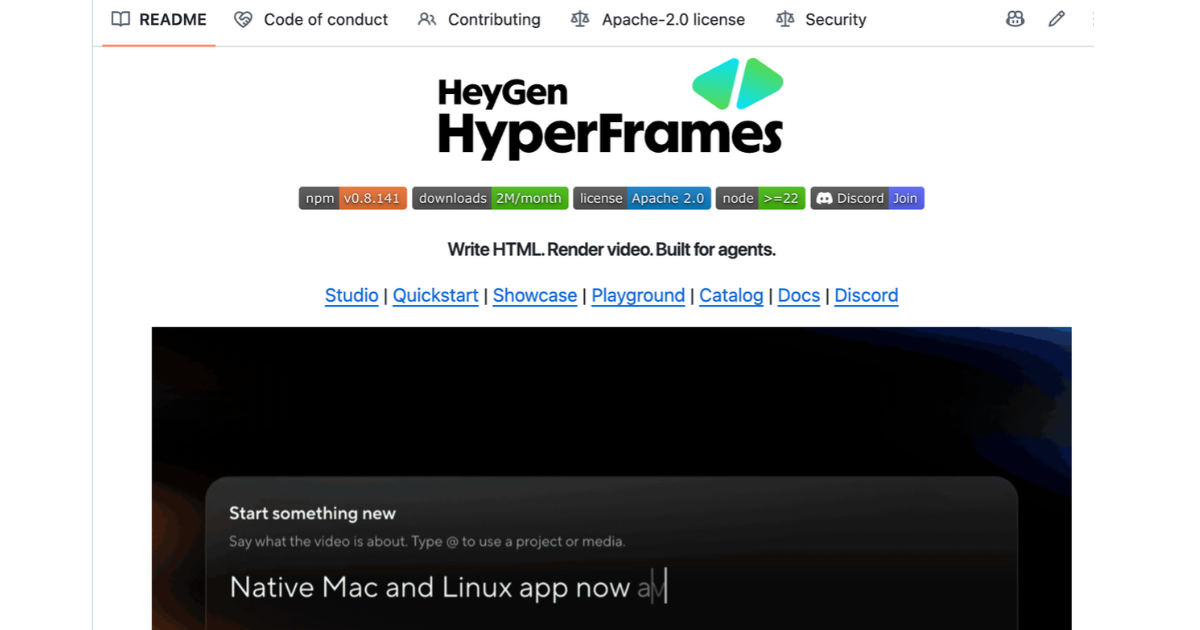
HyperFrames is an open-source video framework built by HeyGen. Claude writes the video as code, then renders it into a normal MP4 you can post anywhere. Because it’s open source, you pay nothing for the tool itself. The only thing you need is the Claude plan you probably already have.
But there’s a catch: most people set it up the wrong way. Below are the two mistakes I see most, the exact commands that work, and three prompts you can copy and paste today.
The Two Mistakes Almost Everyone Makes
Mistake 1: Trying to install it in the Claude chat
The most popular mistake is opening a normal Claude chat and asking it to install HyperFrames. It won’t work. HyperFrames only works in Claude Code, because it needs to run commands on your computer and render files locally.
If you’ve never used Claude Code, start with my beginner’s guide to Claude Code and come back.
Mistake 2: Connecting it through a plugin under “Customize”
The second mistake is going to Customize in Claude and adding HyperFrames as a connector or plugin from there. It looks like the obvious route, but it sends you to sign up for HeyGen, the company behind HyperFrames. From there you may be prompted to pay based on usage, which is exactly what we’re trying to avoid.
We want the open-source route: build AI videos for free, with Claude. That means installing it directly inside Claude Code, as shown next.
How to Install HyperFrames in Claude Code (Free)
Open Claude Code (in the terminal, or in the Code tab of the Claude desktop app) and run these two commands, one after the other.
1. Add the HyperFrames marketplace:
2. Install the plugin:
3. Open a new tab. Re-open Claude Code in a fresh tab so the plugin becomes active. If you skip this, Claude won’t see HyperFrames yet.
Now for the fun part: building your first video.
Set up a project folder first
I recommend opening a dedicated folder inside Claude Code before you start. This is where you’ll put all your assets (logos, screenshots, mascots), and where Claude will later save the videos it produces. One folder per project keeps everything tidy and lets you point Claude at files by name, like “use the screenshots in the Product Shots folder.”
What Does It Cost? (About 9% of a Session)
A 10-15 second video on Claude Opus 5.5, on the $20/month Claude Pro plan, used about 9% of my session usage. That’s not a lot, and nothing came out of my pocket on top of the subscription.
I’d still recommend keeping videos short, 30 seconds or less. Longer videos mean more scenes, more code, and more of your usage limit. If you’re hitting limits often, my guide on how to reduce Claude token usage will help.
3 Videos I Built (With the Exact Prompts)
For these examples I used my startup, Talk to Me Data, which builds AI agents for businesses. Swap in your own product, links and screenshots. Each prompt has a copy button.
1. A simple product demo video
The easiest place to start: a 10-second product demo. Put screenshots of your product in your project folder, tell Claude where they are, and describe what the video should promote.
2. A video inspired by another video, with an animated mascot
This one is my favorite. I found a video I loved, asked Claude to work out what makes it so good, and then had it recreate that style for a Talk to Me Data announcement. I also dropped a static ambassador image into the folder and asked Claude to animate it as the personification of the agent.
3. A fast, feature-packed explainer
The third video is shorter (15-20 seconds) but packed with information. It’s built around many website screenshots and ends with a clear call to action, which makes it a good template for an explainer-style promo.
Tips for Better Videos
- Give Claude a reference. “Figure out what makes this video good” works far better than describing a style from scratch.
- Add real assets. Screenshots, logos and mascots in your folder make videos feel like your brand, not a template.
- Be specific about length, format and call to action. Say 10 seconds or 20, and write the exact CTA text you want.
- Expect a round or two of edits. Tell Claude what to change, such as “slow down the transitions” or “make the headline bigger”, the same way you’d brief an editor.
- Keep it under 30 seconds. Shorter videos are cheaper on usage and perform better on social.
If you’ve tried the Remotion route, you may like HyperFrames even more. Compare it with my guide on creating AI videos with Claude and Remotion.
Somewhere to put the video
Build your beautiful website today
Great video, no website to host it on? Let's fix that. My complete step-by-step pack takes you from a blank screen to a real website, live on your own domain - plus a private 1-on-1 call with me.
Build My Website With Claude →Lifetime access · Beginner friendly · No code needed
Nas’ Note: Free Video Is Now a Real Option
A short, polished video used to cost real money or hours in an editor. Now it costs a small slice of a $20 plan and a few minutes. The one thing to get right is the setup: install HyperFrames inside Claude Code, with the two commands above, and skip the plugin sign-up that leads to usage-based billing.
Start with the 10-second product demo, then iterate. Once you’ve made one, the rest come fast. And once you’re posting videos regularly, a good Claude workflow for marketing will help you keep up.
Liked what you just saw? Follow me on Youtube or connect on LinkedIn for more insights on growing your business online.
Video Guides you might like:
 How to use Claude Code to build Apps
  10 Best Claude Code Skills for beginners
  How to create AI Video Animations with Claude + Remotion
  How to use Claude Code to build a Website
  How to use Claude Skills for beginners
  How to write the PERFECT CLAUDE.md file
  Automate 80% of your Marketing with Claude
  How to use Claude Code — The basics
  Work 2X Faster with Claude Cowork
  How to NEVER Hit Claude Usage Limits Again