· Nas · Technology · 8 min read
How to Use Claude for Marketing - Automate Social Media with AI
Claude can handle all three pillars of marketing content - written copy in your brand voice, visual assets, and short-form video. Here's exactly how to set it up.
How to Use Claude to automate Marketing with AI
Claude is one of the most versatile AI tools available out there, and most people use it for maybe 20% of what it can actually do. After you go through this post, you’ll be able to at least tap into 80% of what can actually be done with AI for Marketing.
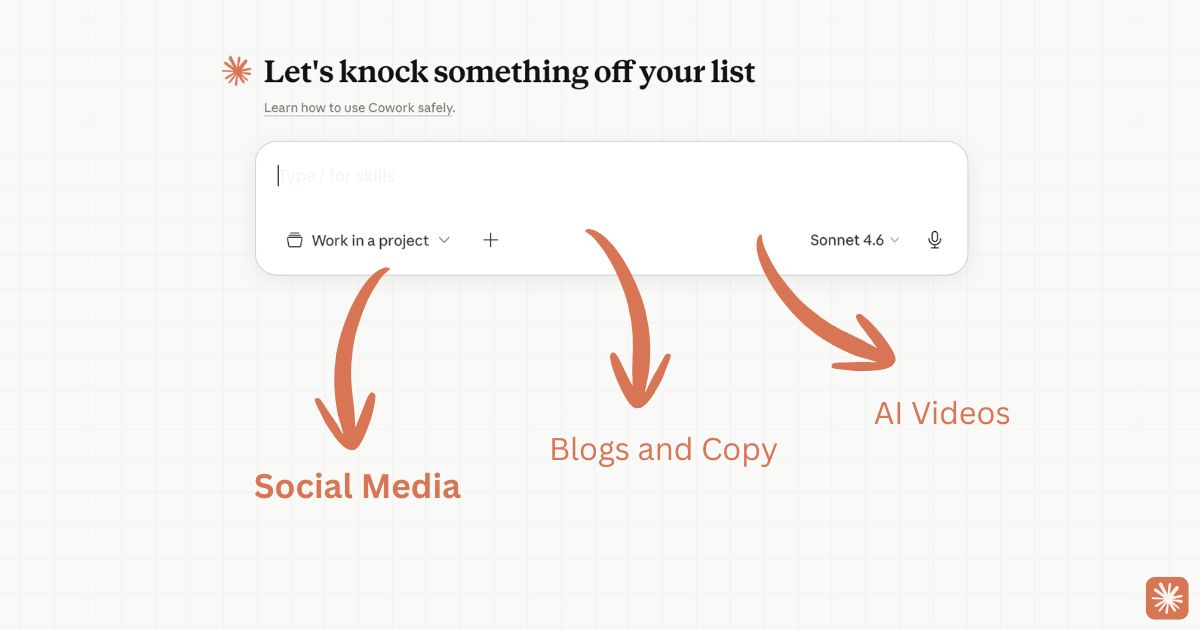
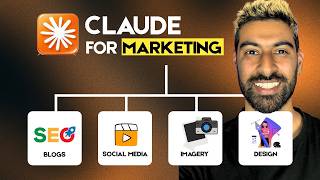
The way I see it, within the marketing function there are three main types of content you can create:
- Text: blog posts, LinkedIn posts, email copy, ad copy, landing pages
- Images: social media graphics, logos, brand assets, Open Graph images
- Videos: short animations, social media clips, product explainers
Claude can help you with all three. And in this guide I’m going to walk you through exactly how to set each one up.
What You Need Before You Start
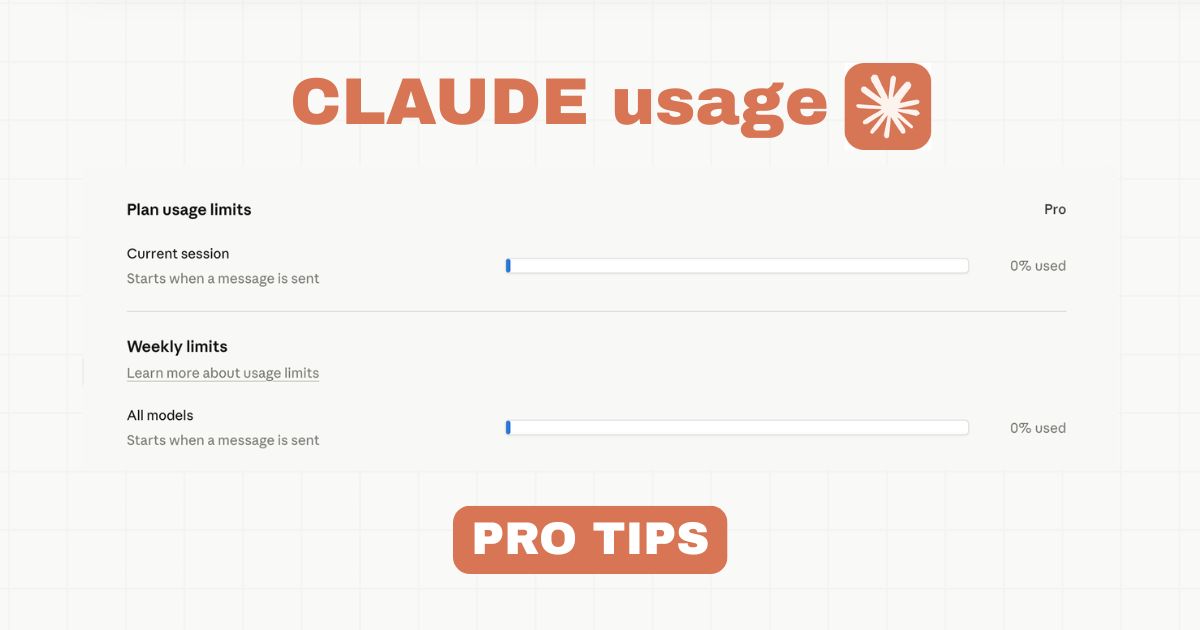
You need a paid Claude subscription so that is at least the Pro plan ($20/month). The free tier doesn’t give you access to Claude Code nor Claude Cowork which you will need, because both the plugins and skills live inside these two environments.
If you’re not set up yet, start with this guide on Claude Code for beginners which covers the full setup process.
Watch the Video Tutorial Here
Part 1: Text - Writing in Your Brand Voice
The biggest mistake people make when using AI for copywriting is skipping brand voice setup. Without it, Claude writes in a generic AI tone, which technically fine, but not yours. Here’s how to fix that.
Step 1: Add the Marketing Plugin and Brand Voice
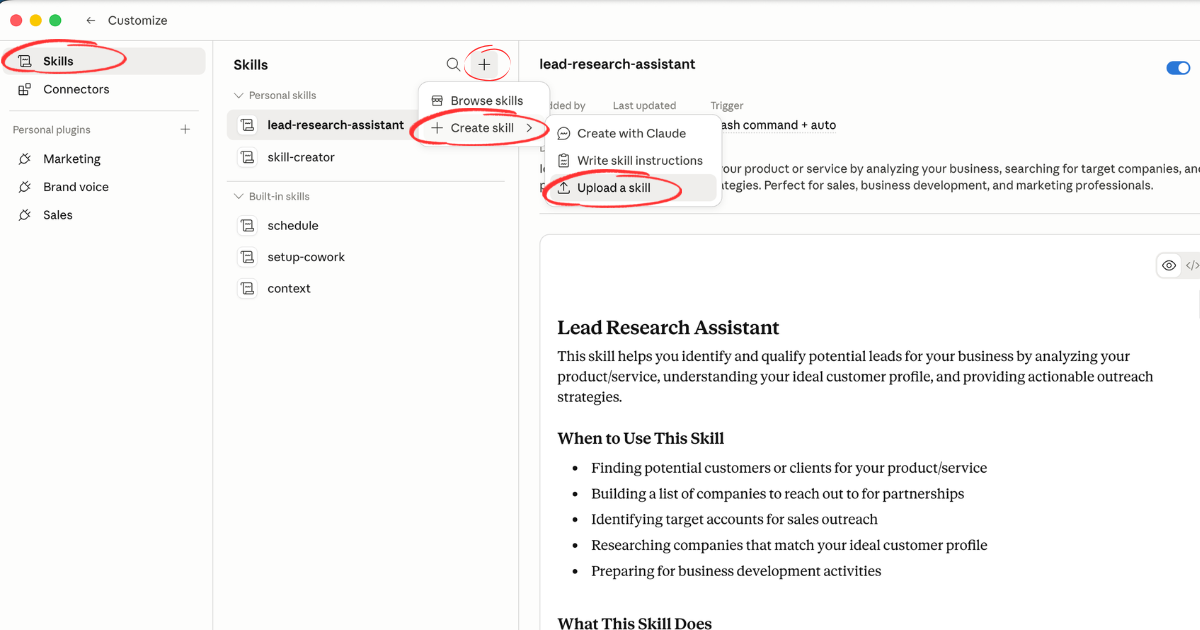
Open the Claude Desktop app and go to Cowork → Customize → Plugins. From there, add:
- Marketing Plugin - gives Claude access to a suite of marketing-focused capabilities
- Brand Voice - teaches Claude your brand’s tone, style, and personality
Under these plugins you’ll find several skills specifically built for marketing tasks — post generation, ad copy, email writing, and more.
Step 2: Generate Your Brand Guidelines
Once the plugin is installed, run:
/guideline-generationAdd your website’s URL when prompted. Claude will analyze your site - the copy, the tone, the structure - and extract a brand guidelines profile automatically. It reads how you write, what words you use, how formal or casual your tone is, and builds a reference document it will use for every future request.
This takes a couple of minutes and you only need to do it once.
Step 3: Create On-Brand Content
Now that Claude knows your brand voice, you can ask it to write anything and it will match your style automatically:
“Write a LinkedIn post about why most founders underinvest in marketing.”
“Write a short email to re-engage cold leads for our SaaS product.”
“Write a 600-word blog intro about how AI is changing e-commerce.”
Every output will be in your brand voice, not generic AI copy. If it drifts, you can refine the guidelines — just tell Claude what to adjust and it updates the profile.
Your marketing needs a home
Build your beautiful website today
Every campaign points somewhere. Make it a site you own. My complete step-by-step pack takes you from a blank screen to a real website, live on your own domain - plus a private 1-on-1 call with me.
Build My Website With Claude →Lifetime access · Beginner friendly · No code needed
Part 2: Images - Building Visual Assets
Now that you know how to produce text-based marketing assets, let’s move on to images.
Claude doesn’t generate images natively, but with the right skill installed it can build production-ready visual assets - social media graphics, logos, favicons, Open Graph images, and brand assets through code.
Step 1: Enable Skill Generation
In Claude Desktop, go to Customize → Skills and enable Skill Generation. This unlocks the ability to run specialist skills that extend Claude’s capabilities beyond its defaults.
Step 2: Install the Web Asset Generator Skill
Switch to the Claude Code tab and install the Web Asset Generator skill. This skill gives Claude deep knowledge of web and social image formats such as dimensions, compression, aspect ratios, meta tag requirements, etc. so it can generate assets that are immediately usable.
You can find and download the skill at point 5 in this guide - the Web Asset Generator section has the direct GitHub link and install instructions.
What you can build with it:
- Social media post graphics (Instagram, LinkedIn, Twitter/X)
- Open Graph images for blog post link previews
- Favicons and PWA app icons
- Logo variations and brand asset exports
Give Claude your brand colors, your logo, or a text description of your brand, and it handles the rest - producing correctly sized, export-ready files.
What This Looks Like in Practice
“Create an Open Graph image for a blog post titled ‘How to Use Claude for Marketing’. Use our brand colors (orange #f97316 and dark #1a1a2e) and a clean, minimal layout.”
Claude builds the asset as code, renders it, and saves the output file directly to your working folder.
Part 3 - Videos
For video, the tool you want is the Remotion skill - and this one runs inside Claude Cowork, not Claude Code.
Install the Remotion Skill in Cowork
In Claude Cowork, install the Remotion skill the same way you’d install any other skill:
/skills install [Remotion skill URL]Once installed, Claude can generate programmatic videos using the Remotion framework with produces animated content built from code that you can export as MP4 or WebM.
What Remotion Is Best For
This isn’t a replacement for full a full professional video production setup, but it is ideal for:
- Short social media animations - text animations, data visualisations, product feature highlights
- Product explainer clips - animated walkthroughs of features or workflows
- Branded motion graphics - intro/outro sequences, lower thirds, slide transitions
- Data-driven video - charts and metrics that animate in sequence
You describe the video you want - scenes, text, colors, timing, transitions - and Claude writes the Remotion code that generates it. No editing software, no After Effects, no video production experience needed.
For a full walkthrough of how Remotion works and what you can build with it, read my complete guide: How to Use Claude + Remotion to Create AI Videos.
Ready when you are
Build your beautiful website today
One last thing before you go: if you want the whole build handed to you step by step, this is it. My complete step-by-step pack takes you from a blank screen to a real website, live on your own domain - plus a private 1-on-1 call with me.
Build My Website With Claude →Lifetime access · Beginner friendly · No code needed
Prefer it done for you? Get in touch →
Putting It All Together
Here’s how the full marketing workflow looks once everything is set up:
| Content Type | Tool | Setup Required |
|---|---|---|
| Blog posts, LinkedIn, email copy | Claude Cowork + Marketing Plugin | /guideline-generation with your URL |
| Social graphics, logos, OG images | Claude Code + Web Asset Generator skill | Install from Top 10 Skills guide |
| Short animations, product videos | Claude Cowork + Remotion skill | Full guide at Remotion tutorial |
The setup for each one is a one-time investment. Once your brand guidelines are generated, your skills are installed, and your plugins are active, creating new marketing assets becomes a matter of prompting — not producing.
That’s the shift worth making.
Nas’ Note: Most Marketers Are Still Using 20% of This
AI for marketing is still being treated mostly as “a faster way to write.” But text is just one of the three pillars. The founders and marketers who get ahead in the next year won’t be the ones who use AI to draft faster - they’ll be the ones who use it across the full stack: copy, visuals, and video, all consistent, all on-brand, all at speed.
The setup is a few hours. The payoff compounds every week after that.
Start with brand voice. Then add images. Then add video. Build the system once, and use it forever.
Liked what you just saw? Follow me on Youtube or connect on LinkedIn for more insights on growing your business online.
Video Guides you might like:
 How to use Claude Code to build Apps
  10 Best Claude Code Skills for beginners
  How to create AI Video Animations with Claude + Remotion
  How to use Claude Code to build a Website
  How to use Claude Skills for beginners
  How to write the PERFECT CLAUDE.md file
  Automate 80% of your Marketing with Claude
  How to use Claude Code — The basics
  Work 2X Faster with Claude Cowork
  How to NEVER Hit Claude Usage Limits Again