· Nas · Technology · 14 min read
Top 10 Claude Code Skills - How to Start Using Them
With Claude Skills you can build websites, create AI videos, generate LinkedIn posts, and so much more — all from a single prompt. Here are the 10 best skills to install right now.

Top 10 Claude Code Skills — How to Start Using Them
With Claude Skills you can create fully responsive modern websites, AI videos, presentation decks, LinkedIn posts, and so much more. And you can do all of this with just a prompt.
In this guide, I’m going to walk you through the 10 best skills you can download right now to automate the majority of what you do — and show you exactly how to get them set up, whether you’re using Claude on the web or through Claude Code in your IDE.
Here’s what we’ll cover:
- What are Claude Skills (and why they matter)
- How to download a skill from GitHub
- How to use skills on Claude Web (no VS Code needed)
- The Top 10 Skills — with links to install each one
If you prefer to watch rather than read, I’ve also made a full video walkthrough below:
What Are Claude Skills?
Claude Skills are markdown files that teach Claude how to do something — once. After you install a skill, Claude applies that knowledge automatically whenever it’s relevant, picking up the right skill for the right request without you having to re-explain anything.
Here’s a simple example: if you create a skill called Brand Guidelines and feed it your logo, colours, and fonts, every time you ask Claude to create marketing content, it will automatically build content that follows those brand guidelines. No re-prompting. No copy-pasting style guides. Just better output, faster.
A few important things to know:
- Each skill is purpose-built. Skills aren’t generic — they’re designed to do one thing really well. The presentation deck skill is tuned specifically for building slides; the PDF skill knows everything about extracting, splitting, and converting documents.
- Install once, use forever. Once a skill is installed, it’s there permanently. You don’t need to reinstall it the next time you open Claude.
- Skills can be combined. As you get more advanced, you can stack multiple skills for more complex workflows — for example, using your Brand Guidelines skill alongside the LinkedIn Post Generator to produce on-brand content every time.
How to Download a Skill from GitHub
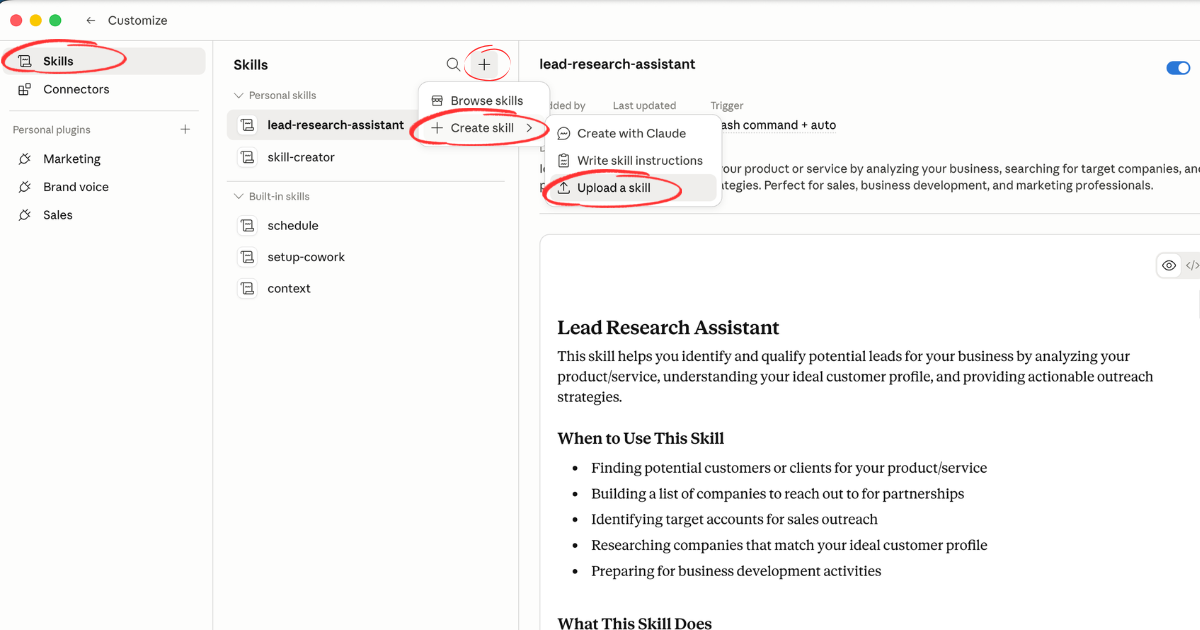
Most Claude Skills are hosted on GitHub. Here’s the general process to install any skill from a GitHub repository:
Step 1: Copy the raw skill file URL
Navigate to the skill’s GitHub page (I’ll link directly to each one below). Inside the repository, find the skill.md file and click on it. Then click Raw to see the raw markdown content, and copy that URL from your browser.
Step 2: Install the skill in Claude Code
Open your terminal, navigate to your project folder, and run:
claudeOnce Claude Code is running, use the /skills command followed by the GitHub URL:
/skills install https://raw.githubusercontent.com/[skill-repo-path]/skill.mdClaude will download and configure the skill automatically. You’ll get a confirmation once it’s installed and ready to use.
Step 3: Activate the skill in your prompt
You don’t need to do anything special to activate a skill — Claude detects which skill is relevant based on your request. But if you want to be explicit, you can mention it directly:
“Use the frontend-design skill to build me a landing page for my SaaS product.”
That’s it. The skill handles the rest.
If you want a deeper dive into finding, installing, and even creating your own skills, I’ve written a full step-by-step guide here: How to Start Using Claude Skills — Top 15 Skills to Copy.
Want help setting up Claude Skills for your business?
Get in Touch Today →Using Skills Without VS Code (Claude Web)
Don’t have VS Code or Claude Code set up yet? No problem — you can still use Claude Skills directly inside the Claude web app.
Here’s how:
- Go to claude.ai and open a new conversation
- Open the Projects panel on the left sidebar and create or open a project
- Upload the
skill.mdfile directly into the project as a document — Claude will read it automatically and apply the skill’s instructions for every conversation in that project - Start prompting — Claude will pick up the skill’s capabilities from the uploaded file and apply them to your requests
The experience is slightly different from Claude Code (you won’t use terminal commands), but the skill’s output quality is the same. This is a great way to test a skill before setting up a full development environment.
If you want to go further and set up Claude Code properly, I’ve written a full beginner’s guide: How to Use Claude Code for Beginners.
The Top 10 Claude Code Skills
Here are the 10 skills I recommend installing first. Each one targets a high-value, repetitive task — and each one will save you hours every week.
1. Create Presentation Decks
What it does: Generates complete, formatted presentation decks from a text description. Give Claude a topic, an audience, and a rough outline — it builds the slides.
Why it’s useful: Instead of spending two hours in PowerPoint or Google Slides, you describe the deck you need and Claude builds it. You can then iterate on specific slides, change the design, or add speaker notes.
→ Install the Presentation Deck Skill on GitHub
2. Build Beautiful Websites with a Prompt
What it does: The Frontend Design Skill gives Claude deep knowledge of modern web design — layouts, typography, responsive behaviour, colour systems, and UI components — so it can build polished, professional websites from a single description.
Why it’s useful: No designer, no template, no code. You describe the site you want, Claude builds it, and you iterate until it looks exactly right. I’ve written a full tutorial on this: How to Build Beautiful Websites with Claude.
→ Install the Frontend Design Skill on GitHub
3. Create AI Videos with a Prompt
What it does: The Remotion Skill integrates with the Remotion video framework to let Claude generate animated videos from code — product demos, social media content, presentation animations, and more.
Why it’s useful: You describe the video you want — sequence of scenes, text, colours, timing — and Claude builds it. No editing software, no After Effects. I’ve also written a full guide on this: How to Use Claude + Remotion to Create AI Videos.
4. LinkedIn Post Generator
What it does: Generates high-performing LinkedIn posts in a candid, direct, no-BS tone — structured around proven engagement formats: hook, insight, breakdown, and takeaway. No corporate jargon, no motivational fluff.
Why it’s useful: Consistency is the biggest challenge with LinkedIn. This skill removes the blank-page problem entirely. You give Claude a topic or a rough idea, and it writes a post ready to publish. Watch how to set it up in my full video walkthrough above.
→ Watch the full walkthrough on YouTube
Unlike the other skills in this list, this one isn’t hosted on GitHub — I built it specifically for this blog so you can copy it directly. Save it as a skill.md file in your project folder and Claude will pick it up automatically.
---
name: linkedin-post-generator
description: Reviews or generates LinkedIn posts and adjusts them to a candid, direct, no-BS tone of voice. Use this skill whenever creating, rewriting, or optimizing LinkedIn posts so they sound sharp, practical, and slightly irreverent without using corporate jargon.
---

# LinkedIn Post Generator

Generate or rewrite LinkedIn posts in a candid, direct, no-BS tone. The writing should feel like a smart operator sharing real insights, not a corporate marketer trying to sound impressive.

Posts should be concise, practical, and slightly opinionated. Avoid buzzwords, motivational fluff, or overly polished language. Write the way an experienced founder, marketer, or builder would speak when sharing lessons learned.

The goal of each post is to:
- Share a useful insight
- Challenge common assumptions
- Tell a short story or observation
- Provide actionable value

Posts should feel authentic, grounded in real-world experience, and easy to read quickly in a LinkedIn feed.

## Structure

When possible, follow this structure:

1. **Hook** — a strong first line that sparks curiosity or challenges a belief.
2. **Insight or Story** — a short explanation, lesson, or observation.
3. **Breakdown** — optional bullets or short paragraphs expanding the point.
4. **Takeaway** — a clear lesson, principle, or shift in thinking.

Prefer short paragraphs (1–2 sentences each) and occasional bullet points.

Tone characteristics:
- Direct
- Slightly contrarian
- Practical
- Conversational but sharp
- Confident without sounding arrogant

Avoid sounding like:
- A corporate brand
- A motivational speaker
- A guru selling frameworks

Do not use excessive emojis, hashtags, or dramatic storytelling.

## Examples

### Example usage 1

**User input:**
Write a LinkedIn post about how most founders waste time perfecting products instead of validating demand.

**Output style:**

Most founders obsess over product.

Better UI.
More features.
Cleaner onboarding.

Meanwhile no one is buying.

The real job early on isn't building.

It's proving demand exists.

Before writing thousands of lines of code, answer one question:

**Do people actually want this?**

Some faster ways to find out:
- Sell the product before it exists
- Build a landing page and run ads
- Talk to 20 potential customers
- Offer a manual version first

Product perfection doesn't create demand.

Demand makes product improvement obvious.

Build less. Validate more.

---

### Example usage 2

**User input:**
Turn this idea into a LinkedIn post: AI tools are making execution cheaper, so distribution and taste matter more.

**Output style:**

AI is making execution cheap.

What used to take a team now takes one person and a few tools.

Which means something interesting is happening:

Execution is no longer the bottleneck.

Distribution is.

Taste is.

Anyone can generate content.
Anyone can spin up a product.
Anyone can automate workflows.

But not everyone knows:
- what to build
- how to position it
- how to get attention

The leverage is shifting.

Less "can you build it?"
More "do people care?"

---

## Guidelines

### Writing style

- Write at a 6–8th grade readability level.
- Use short sentences and short paragraphs.
- Prefer clarity over cleverness.
- Avoid corporate jargon (synergy, leverage, paradigm, etc.).
- Avoid filler phrases like "I'm excited to share" or "thrilled to announce."

### Formatting

- Use spacing between sentences to improve readability.
- Use bullets when listing ideas.
- Keep posts typically between **80–220 words**.

### Hooks

Strong hooks often:
- Challenge a common belief
- Reveal a surprising insight
- Start with a short statement

Examples:
- "Most startups fail before they even launch."
- "AI didn't make building harder. It made distribution harder."
- "Everyone says build fast. Almost no one says validate first."

### Content approach

Posts should focus on:
- Marketing lessons
- Startups
- AI and automation
- Go-to-market strategy
- Founder insights
- Real-world experimentation

### Avoid

- Overly motivational tone
- Fake storytelling
- Generic advice
- Long introductions

### Optional ending

Posts may end with:
- A short takeaway
- A question to spark discussion
- A concise principle

Example endings:
- "Demand first. Product second."
- "Most founders get this backwards."
- "Curious how others think about this."
Want help setting up Claude Skills or automating part of your business with AI?
I'm more than happy to support — get in touch via the link below.
Get in Touch →5. Web Asset Generator
What it does: Generates web assets — favicons, app icons, Open Graph images, and social media preview cards — from a logo or text slogan. It handles the resizing, formatting, and outputs ready-to-use HTML meta tags.
Why it’s useful: Every website needs these assets, and getting them right is tedious. Upload your logo, describe your brand, and this skill produces everything you need for your site’s metadata, social sharing previews, and PWA icons in one go.
→ Install the Web Asset Generator Skill on GitHub
6. Build Dashboards and Web Artifacts
What it does: The Web Artifacts Builder skill gives Claude the ability to create complex, multi-component web applications — dashboards, admin panels, data visualisations, interactive tools — using React, Tailwind CSS, and shadcn/ui components.
Why it’s useful: If you need something more than a landing page — a reporting dashboard, an internal tool, a data display — this skill handles the architectural complexity for you. It’s particularly good for founders who need internal tooling fast.
→ Install the Web Artifacts Builder Skill on GitHub
7. Meeting Insights Analyser
What it does: Analyses meeting transcripts and recordings to surface behavioural patterns, communication insights, and actionable feedback. It identifies when you use filler words, dominate conversations, avoid conflict, or miss listening opportunities.
Why it’s useful: Most people never review their meetings. This skill turns every transcript into a coaching session — giving you specific, evidence-based feedback on how you communicate, so you can improve over time.
→ Install the Meeting Insights Analyser Skill on GitHub
8. File Organiser
What it does: Intelligently organises files and folders across your computer — finding duplicates, suggesting better structures, and automating cleanup tasks based on context rather than just file names or dates.
Why it’s useful: If your Downloads folder is a graveyard or your project directories have no logic to them, this skill fixes that. It understands what files actually are and organises them accordingly, reducing cognitive load and saving real time.
→ Install the File Organiser Skill on GitHub
9. Brand Guidelines
What it does: Stores your brand’s colours, typography, logo usage rules, tone of voice, and visual identity as a skill. Claude then applies these guidelines automatically whenever it creates any content for your brand.
Why it’s useful: If you’re using Claude to create marketing materials, presentations, social media content, or websites, this skill ensures everything stays on-brand without you having to re-explain your style guide every session. Set it once, benefit forever.
→ Install the Brand Guidelines Skill on GitHub
10. PDF Tools
What it does: A comprehensive PDF skill that lets Claude extract text, tables, and images from PDFs, merge and split documents, rotate pages, add watermarks, fill forms, encrypt files, and run OCR on scanned documents to make them searchable.
Why it’s useful: PDFs are everywhere in business — contracts, reports, invoices, research papers. This skill turns Claude into a full PDF processing engine. Instead of switching between different tools, you describe what you want done and Claude handles it.
→ Install the PDF Skill on GitHub
Nas’ Note: Skills Are the Real Unlock
Most people use Claude like a smarter Google — type a question, get an answer. Skills are what turn it into something much more powerful: a specialist that knows your brand, your tools, and your workflow, and applies that knowledge automatically every time.
The ten skills above cover a huge range of what most founders and operators do on a daily basis. Content creation, video production, web design, document processing, meetings analysis — these used to require different tools, different freelancers, different learning curves.
Now they’re all one prompt away.
Start with one skill. Install it, try it on a real task, and see what it produces. Then layer in the next one. That’s how you go from “Claude is occasionally useful” to “Claude handles things I used to spend hours on.”
If you want help setting up skills or automating a specific part of your business with AI, get in touch — I’m happy to help.
Liked what you just saw? Follow me on Youtube or connect on LinkedIn for more insights on growing your business online.
Video Guides you might like:
 How to use Claude Code to build Apps
  10 Best Claude Code Skills for beginners
  How to create AI Video Animations with Claude + Remotion
  How to use Claude Code to build a Website
  How to use Claude Skills for beginners
  How to write the PERFECT CLAUDE.md file
  Automate 80% of your Marketing with Claude
  How to use Claude Code — The basics
  Work 2X Faster with Claude Cowork
  How to NEVER Hit Claude Usage Limits Again