· Nas · Technology · 12 min read
How to Build Beautiful Websites with Claude - Design Skill Tutorial for Beginners
Learn how to build fully responsive, professional-looking websites with Claude's Frontend Design Skill - no coding required. Includes how to copy designs you love and level up with 21st.dev components.
How to Build Beautiful Websites with Claude - Frontend Design Skill Tutorial for Beginners
Here’s what most people don’t realise about building websites with AI: the difference between a site that looks amateur and one that looks like it was designed by a professional isn’t the AI itself - it’s whether you know how to give that AI the right skills.
With Claude’s Frontend Design Skill, you can build fully responsive, modern websites that look like they came out of a design studio. No code. No Figma. No designer on retainer. Just a prompt and a skill.
In this guide, I’m going to take you through the exact playbook — from installing Claude Code all the way to copying a design you love and shipping a polished website. Even if you’ve never used Claude before, you’ll be able to follow along and come out the other side with a real website.
Here’s what we’ll cover:
- Installing and setting up Claude Code
- Understanding Claude Skills and why they matter
- Installing the Frontend Design Skill
- Building your first website with a single prompt
- Finding design inspiration online
- Copying a design you love using Puppeteer
- Levelling up your site with 21st.dev components
- Publishing your website for free
Step 1: Install Claude Code
Before anything else, you need Claude Code installed on your machine. Claude Code is Anthropic’s AI coding tool that runs in your terminal and can build, edit, and preview websites for you.
Open your terminal and run:
npm install -g @anthropic-ai/claude-codeOnce installed, navigate to the folder where you want your website to live and run claude to start a session.
If you’ve never set up Claude Code before, I’ve written a full beginner’s guide that walks through the VS Code setup, authentication, and first steps — check out How to Use Claude Code for Beginners before continuing here.
Step 2: Understanding Claude Skills
Claude is powerful out of the box — but Skills are what take it from “pretty good” to “professional-level output.”
Think of Skills like specialist training. Without a skill, Claude knows a little about frontend design, video creation, and dozens of other things. With a Skill installed, Claude has deep, focused knowledge about that specific capability — and it uses far fewer tokens to get great results, which is good for your wallet.
A few things worth knowing:
Each skill is purpose-built. The Frontend Design Skill isn’t a general-purpose design tool — it’s specifically tuned to help Claude build high-quality, responsive websites. It understands layouts, typography, spacing, components, and modern design patterns at a level it doesn’t reach without it.
Install once, use forever. Once a skill is installed, it’s available in every Claude session. You don’t need to set anything up again.
Skills can be combined. As you get more advanced, you can combine multiple skills for more complex workflows. For example, I’ve already written a guide on how to use Claude with the Remotion Skill to create AI videos — the same principle applies here, just for websites instead.
Step 3: Install the Frontend Design Skill
Now let’s install the skill. Run these two commands in your terminal in order:
claude plugin marketplace add anthropics/claude-codeclaude plugin install frontend-design@claude-code-pluginsThe first command connects Claude to the plugin marketplace. The second installs the Frontend Design Skill. Wait for both to confirm before moving on.
Once installed, you’re ready to build.
Your turn to build
Build your beautiful website today
The design skill gets you the look. This gets you the launch. My complete step-by-step pack takes you from a blank screen to a real website, live on your own domain - plus a private 1-on-1 call with me.
Build My Website With Claude →Lifetime access · Beginner friendly · No code needed
Step 4: Build Your First Website
Now the fun begins. With the Frontend Design Skill active, you can describe the website you want and Claude will build it — complete with layout, typography, colour palette, and responsive design.
Here’s an example prompt to get you started:
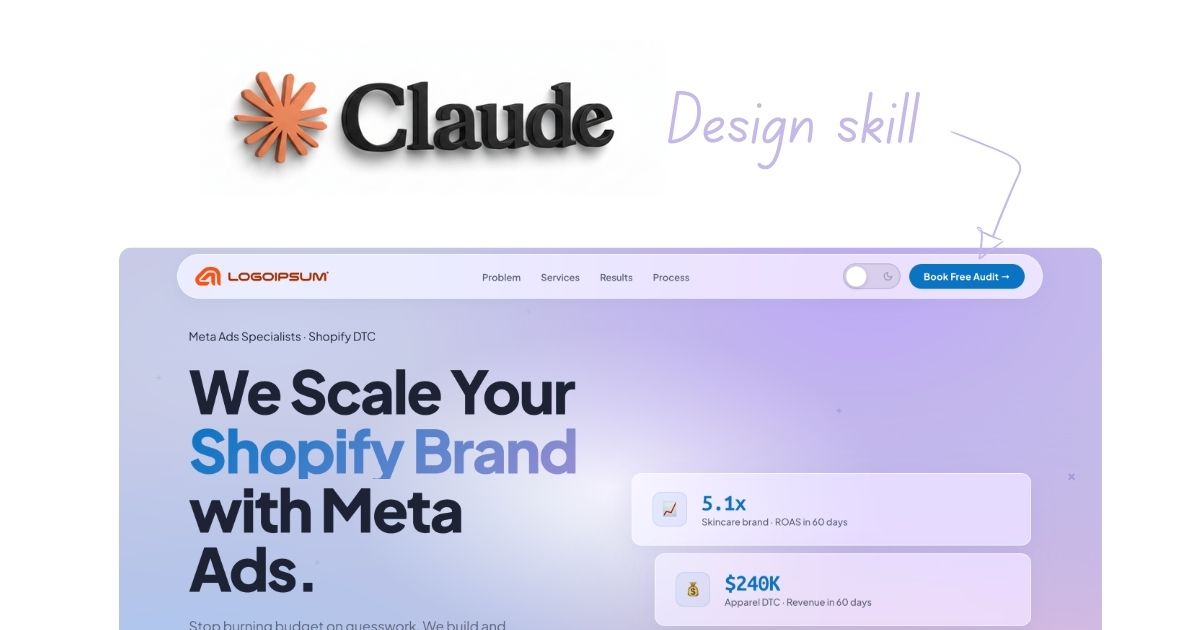
“Use the frontend-design skill to build me a website landing page about selling Meta Ads Management services for growing DTC Brands that sell on Shopify. Launch it on localhost. Use my logo @ and its colours for the design.”
A few things to note about this prompt:
- Mention the skill explicitly — saying “use the frontend-design skill” tells Claude to activate it for this task
- Use @ to reference your files — if you want Claude to use your logo or brand assets, type
@followed by the filename (e.g.@logo.png) and Claude will pick it up from your project folder - Ask it to launch on localhost — this opens a live preview in your browser so you can see the result immediately
One important thing to know: creating a brand new website takes longer than making changes to an existing one. The first build might take a few minutes and use more tokens. But once that foundation is in place, every subsequent edit is fast and cheap. Think of it as a one-time investment.
When Claude finishes, your site will open in your browser at localhost:3000 (or similar). If you’re not happy with the first result, just describe what you’d like changed:
“Make the hero section taller, use a darker background, and move the CTA button to the centre.”
Claude will update the site live. Keep iterating until it looks right.
Step 5: Find Design Inspiration
If you’re not starting from scratch and want to build something that looks like a specific design style, the best move is to find real inspiration first.
Two sites I recommend:
- Dribbble — a community of designers sharing their work. Great for browsing UI styles, colour palettes, and layout ideas
- Awwwards — awards site for the best-designed websites on the internet. Exceptionally high quality
Browse these until you find something that resonates with the look and feel you want. Then move on to the next step.
Step 6: Copy a Design You Love with Puppeteer
Here’s one of the most powerful techniques in this whole guide — using a screenshot of a website you love as a design reference for Claude.
First, a word on Puppeteer: it’s a tool that lets Claude control a browser window to take screenshots, interact with pages, and see what it’s building in real time. Claude uses it behind the scenes to preview your site and verify the design matches your instructions. You don’t need to install it manually — Claude will set it up when needed.
How to Screenshot Any Website for Reference
- Open the website you want to replicate in Chrome
- Open Chrome DevTools (right-click anywhere → Inspect)
- Press Ctrl + Shift + P (Windows) or Cmd + Shift + P (Mac) to open the Command Palette
- Search for “screenshot” and select Capture full size screenshot
- Chrome will save the full-page screenshot to your Downloads folder
Then, in DevTools, go to the Elements tab → Styles panel on the right. You’ll see all the CSS styling for the page. Copy the relevant style rules — this gives Claude the exact fonts, colours, spacing, and visual properties used on that page.
Prompting Claude with the Screenshot
Now drag the screenshot into your project folder (or note the path to it in Downloads), and use this kind of prompt:
“Create a new website that looks like the screenshot I just attached — you can find it here: @screenshot.png. Use Puppeteer as needed. Below I’m also adding the style code for your reference: [paste your copied CSS here]. Launch it on localhost.”
Claude will study the screenshot, apply the styles, and build you a website in that visual style. This is how you go from “AI-generated generic site” to something that looks like a specific, intentional design — in minutes.
Step 7: Level Up with 21st.dev Components
Once your base website is looking solid, head to 21st.dev.
This is a library of high-quality, ready-to-use UI components — things like animated navigation bars, hero sections, dark/light mode toggles, hover effects, scroll animations, and more. Each component is designed to slot cleanly into an existing site and immediately elevate how it looks.
How to Use It
- Browse 21st.dev and find a component you like — for example, a dark/light mode toggle or a glassmorphism card
- Click on the component to see a preview and the code
- Copy the component code or the prompt it provides
- Paste it into Claude with a simple instruction:
“Add this dark/light mode toggle to my website. Here’s the component code: [paste code]. Make sure it matches my existing colour scheme.”
Claude will integrate the component into your existing site. You don’t need to understand the code — you just need to know which component you want and Claude handles the rest.
Some components worth exploring on 21st.dev:
- Dark/light mode toggles — gives your site a polished, modern feel
- Animated hero sections — text reveals, gradient backgrounds, and motion effects
- Glassmorphism cards — the frosted-glass effect that’s everywhere in modern design
- Scroll-triggered animations — elements that fade or slide in as the user scrolls
Ready when you are
Build your beautiful website today
One last thing before you go: if you want the whole build handed to you step by step, this is it. My complete step-by-step pack takes you from a blank screen to a real website, live on your own domain - plus a private 1-on-1 call with me.
Build My Website With Claude →Lifetime access · Beginner friendly · No code needed
Prefer it done for you? Get in touch →
Step 8: Publish Your Website for Free
Once your site looks the way you want it, the last step is getting it live on the internet. There are free tools for this — and the process is simpler than you might think.
I’ve put together a separate tutorial on exactly how to do this: How to Build and Deploy a Website for Free with v0. It covers the full deployment process step by step. Once you’ve followed that guide, your site will be live on a public URL with zero hosting costs.
Prompting Tips for Better Results
A few things I’ve learned from building sites this way that will save you time:
Describe the feeling, not just the features. Instead of “add a hero section,” try “add a bold hero section with a dark background, large serif headline, and a subtle gradient that feels premium and modern.” Claude responds much better to descriptive briefs.
Reference real examples. “Make it look like Stripe’s website” or “use a layout similar to Linear.app” gives Claude a strong visual reference to work from — even without a screenshot.
Make small changes one at a time. When iterating, change one thing per prompt. “Change the font to Inter” rather than “change the font, update the colours, and fix the spacing.” It’s easier to undo if something goes wrong.
Use a CLAUDE.md file for your brand. If you’re building multiple pages or coming back to the project later, a CLAUDE.md file that documents your brand colours, fonts, and design rules saves you from re-explaining everything every session.
Nas’ Note: Design is No Longer a Barrier
The thing I find most exciting about the Frontend Design Skill is what it unlocks for non-technical founders. Until recently, “I want a beautiful website” meant either learning to code, hiring a designer, or settling for a generic template.
None of those options are good. Learning to code takes months. Hiring a designer costs thousands. Templates look like everyone else’s site.
This changes that. You can now have a website that looks like it was designed specifically for your brand, built in an afternoon, for the cost of a Claude subscription.
If you’re running Meta ads for your Shopify store or trying to optimise your landing page for conversions, having a site that actually looks good is table stakes. Now you have no excuse not to.
Start with the install. Build one page. See what it looks like. Then iterate.
Liked what you just saw? Follow me on Youtube or connect on LinkedIn for more insights on growing your business online.
Video Guides you might like:
 How to use Claude Code to build Apps
  10 Best Claude Code Skills for beginners
  How to create AI Video Animations with Claude + Remotion
  How to use Claude Code to build a Website
  How to use Claude Skills for beginners
  How to write the PERFECT CLAUDE.md file
  Automate 80% of your Marketing with Claude
  How to use Claude Code — The basics
  Work 2X Faster with Claude Cowork
  How to NEVER Hit Claude Usage Limits Again