· Nas · Technology · 15 min read
How to Build a Beautiful Website with Claude - All the Design Skills You Need
Most AI websites look identical. Here's the exact skill stack that makes Claude build something genuinely distinctive — five design skills, the order to use them, and the prompts that get results.
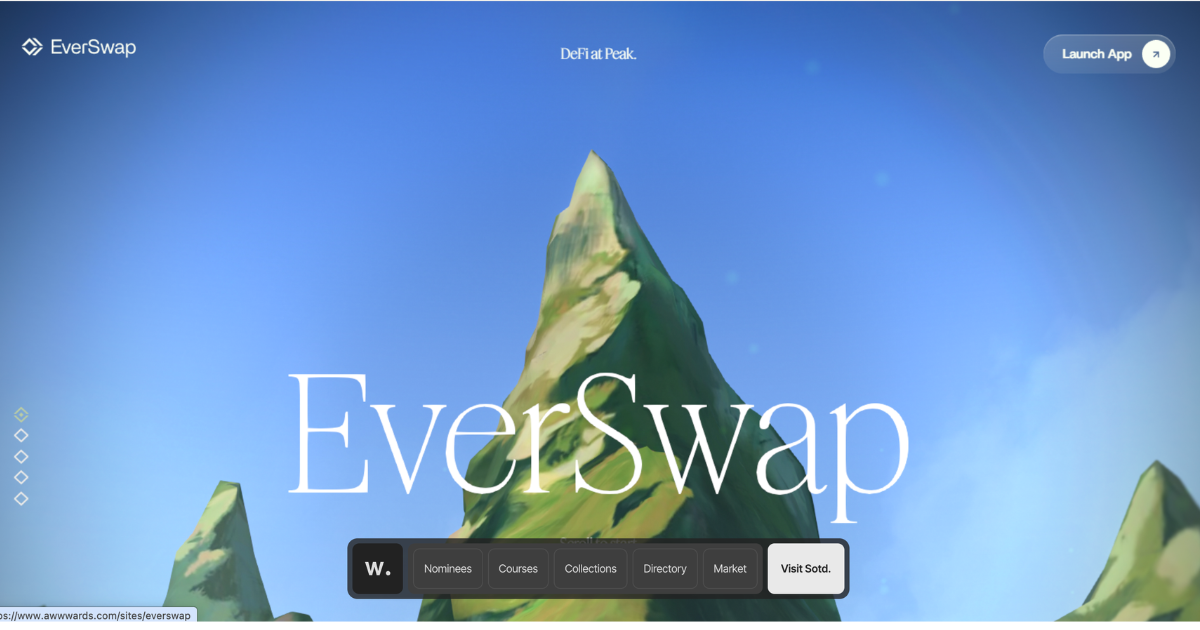
How to Build a Beautiful Website with Claude - All the Design Skills You Need
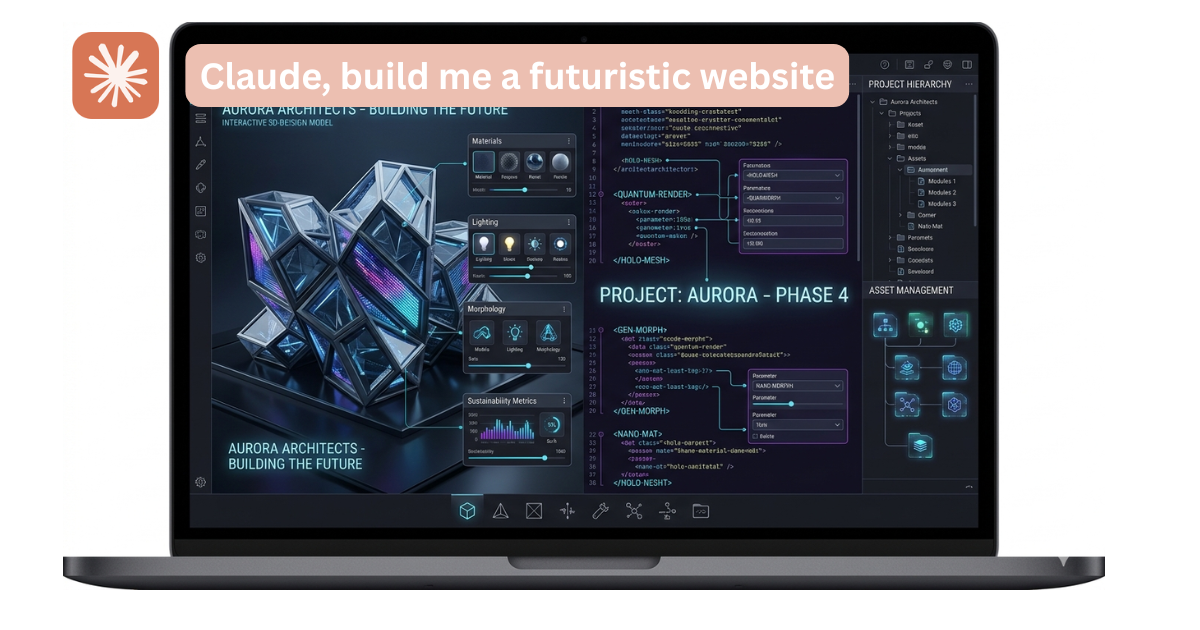
Building a website with Claude is super easy these days, but building a website that actually looks good with Claude takes a bit more than just asking it to “make me a landing page.”
The default Claude output is functional, but it tends to be safe: standard layouts, predictable colour choices, and a design sensibility that feels like the average of everything it’s been trained on. And that’s not me being critical, it’s how most AI models were tained - they optimise towards a safe, predictable choice.
The way to break out of the AI slop matrix is with design skills. These are markdown files that give Claude specific, expert-level knowledge about how to approach visual design, and once they’re installed, they run automatically on everything you build.
In this guide, I’ll walk you through the five design skills that will completely change the quality of what Claude produces. I’ll explain what each one does, the order to use them in, the specific prompts to pair with each one, and the GitHub link to install them.
By the end you’ll have a full design workflow that takes you from blank page to polished, distinctive website - without writing any code yourself.
Why Most AI-Generated Websites Look the Same
Before we get into the skills, it’s worth understanding the problem.
When you ask Claude (or any AI) to “build me a website,” it draws on the average of everything it’s seen. Most websites use similar fonts, similar colour schemes, similar layouts. So the output tends to be safe, centered, and unmemorable - technically correct but visually generic.
Design skills interrupt that pattern by giving Claude a specific brief before it starts building. Instead of defaulting to the average, it makes deliberate design decisions based on expert guidance embedded in the skill file, which typically results in a site that looks well-thought out, rather than AI generated.
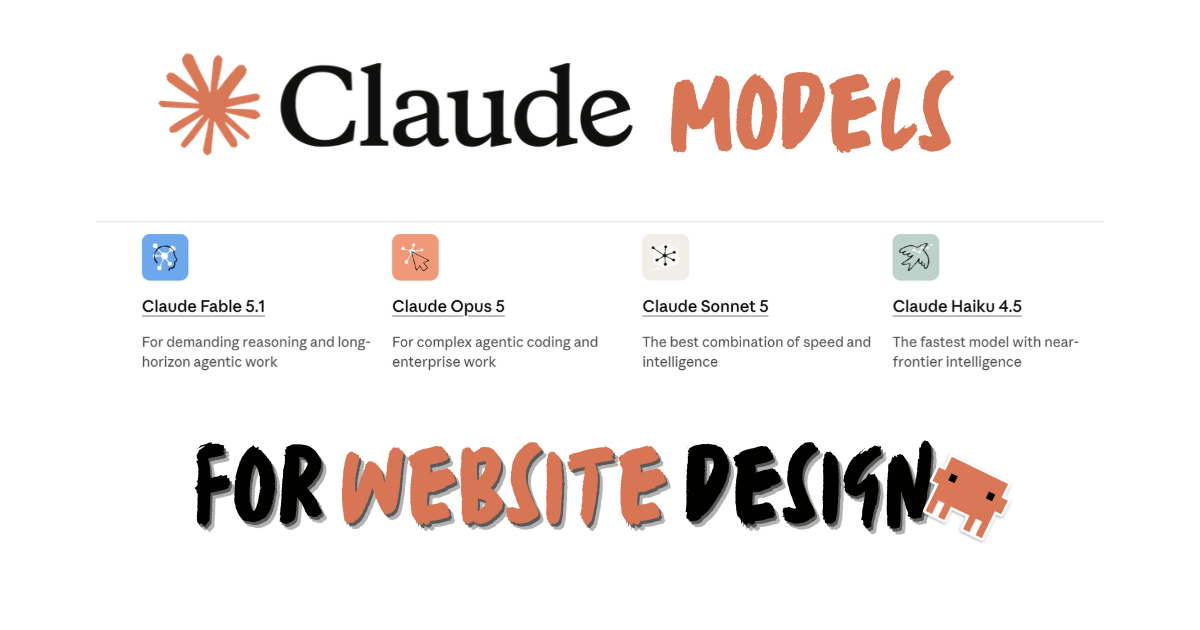
One more thing before you start: use Claude Opus if you can. Design work is one of the areas where the difference between models is most visible. Opus makes more intentional aesthetic choices and commits to a direction rather than hedging. If you’re on a plan that includes Opus access, switch to it for any design-heavy project.
What Are Claude Design Skills?
A Claude Skill is a markdown file that teaches Claude how to do something with expert-level depth. Unlike a prompt (which you re-type every session), a skill is installed once and applies automatically whenever Claude detects it’s relevant.
For web design, this means Claude doesn’t just know how to write CSS - it knows how to make design decisions: which direction to commit to, how to build a coherent visual system, and how to audit the result for quality.
If you haven’t installed skills before, read How to Download and Use a Skill with Claude AI first - it covers the full process in under five minutes.
The 5 Claude Design Skills You Need
Here are the five skills, in the order you should use them on any web project.
1. Frontend Design Skill - Start Here, Every Time
What it does: Before Claude writes a single line of code, this skill forces it to commit to a specific aesthetic direction. Think: brutalist, editorial, warm minimalist, retro-futuristic. It defines the visual language up front, like the typography, spacing system, colour philosophy, motion treatment, and more. All of it while holding the design principles throughout the build.
Why it matters: The root cause of generic AI design is that models skip the “what direction are we going?” question and jump straight to building. This skill makes Claude answer that question first, so every decision that follows is coherent and intentional.
The key difference: A site built without this skill gets assembled from defaults. A site built with it gets designed from a brief. You can see and feel the difference immediately.
Prompt to try:
Use the frontend-design skill to build me a landing page for [your product].
The audience is [describe them]. I want the aesthetic to feel [bold/minimal/editorial/warm - pick one].
When to use it: Every single time. This is the starting point for every web project, regardless of size.
→ Install the Frontend Design Skill on GitHub
2. Taste Skill - Set the Dials Before Building
What it does: Three adjustable parameters that tell Claude exactly what register to work in before it starts:
- Design variance - how experimental vs. conventional the aesthetic should be
- Motion intensity - how much animation and transition work to include
- Visual density - how information-rich or spacious the layout should feel
You set all three dials at the start of your project, and Claude uses them to calibrate everything from layout to animation to whitespace.
Why it matters: “Make it look nice” is not a design brief. Different products need completely different treatment - a wellness brand needs calm and space, a developer tool needs density and precision, a fashion brand needs texture and drama. This skill gives you the vocabulary to communicate the feel before any decisions are made.
Prompt to try:
Use the taste skill. Set design variance to 8/10 (experimental),
motion intensity to 6/10 (moderate), visual density to 4/10 (spacious).
Now build a homepage for [your product].
When to use it: Before Frontend Design, or alongside it. Set your taste parameters first, then let Frontend Design lock in the aesthetic direction.
→ Install the Taste Skill on GitHub
Your turn to build
Build your beautiful website today
You've seen how it's done. Now do it on your own domain. My complete step-by-step pack takes you from a blank screen to a real website, live on your own domain - plus a private 1-on-1 call with me.
Build My Website With Claude →Lifetime access · Beginner friendly · No code needed
3. UI-UX Pro Max - Build a Coherent Design System
What it does: Generates a complete, coherent design system tailored to your industry and site type. Tell it what you’re building and it selects a colour palette and typeface pairing from a curated library of combinations that are proven to work together. Every element of your site is then built on top of that system.
Why it matters: Most AI-generated sites feel thrown together because they are: a heading font from one direction, an accent colour from another, a layout style that clashes with both. UI-UX Pro Max solves this at the root by selecting your visual system first (i.e. typography, colour, spacing) and then building everything else to match.
The result is a site that feels complete and intentional rather than assembled. Colours work with the type, the type works with the layout, and everything feels like it belongs together.
Prompt to try:
Use the UI-UX Pro Max skill. My site is for a [industry] [type of site - SaaS/portfolio/ecommerce].
Select a colour palette and type system that fits the brand direction we've established.
When to use it: After Taste and Frontend Design, once the aesthetic direction is locked in. Let this skill build the design system on top of the direction you’ve already set.
→ Install the UI-UX Pro Max Skill on GitHub
Watch: Building a Beautiful Website with Claude
4. Artifacts Builder - Bring the Site to Life with Interactive Elements
What it does: Specialises Claude in building complex, multi-component web elements that go beyond static pages - interactive dashboards, animated hero sections, custom calculators, data visualisations, pricing tables with live logic, and feature showcases with real interactivity.
This skill uses React, Tailwind CSS, and shadcn/ui components to produce artifacts that render live inside the chat window, so you can see them working before they’re shipped.
Why it matters: The difference between a website that looks good and one that converts is often interactivity. A pricing page with a live cost calculator. A hero section with a product demo built in. A features section where you can toggle between use cases. These elements require multi-component architecture that generic prompting doesn’t handle well - this skill does.
Prompt to try:
Use the web artifacts builder skill to create an interactive pricing section
with three tiers, a monthly/annual toggle, and feature comparison.
Brand it using the design system we've already established.
When to use it: Once the design system is set. Use it for any section that needs interactivity, real logic, or multi-component complexity.
→ Install the Artifacts Builder Skill on GitHub
5. Vercel UI Guidelines - Audit Before You Ship
What it does: A final quality pass that audits your completed site against 100+ rules covering accessibility, performance, visual hierarchy, and responsive behaviour. It catches specific issues that are easy to miss in a visual preview: missing focus states, insufficient colour contrast, poor touch target sizes, inconsistent spacing, and layout breakpoints that don’t quite work on mobile.
Why it matters: A site can look great in a desktop preview and fail in real-world use. Buttons too small to tap. Links that are indistinguishable without a mouse cursor. Headings that look bold in one section and thin in another. A colour contrast ratio that passes visual inspection but fails accessibility standards. This skill surfaces all of those issues before anyone else sees them.
It also matters for SEO. Accessibility failures and performance issues affect how search engines rank your site. Running this audit before launch is both a UX and a ranking decision.
Prompt to try:
Use the Vercel UI guidelines skill to audit this site.
List every issue found, categorised by severity, with specific recommendations for each.
When to use it: Last. After the site is built and the design system is applied. Think of this as your pre-launch checklist.
→ Install the Vercel UI Guidelines Skill on GitHub
The Full Workflow - Step by Step
Here’s how the five skills fit together into a complete build process:
Step 1 - Set your taste parameters (Taste Skill) Before anything is built, decide how experimental, how animated, and how dense you want the site to feel. Set the three dials explicitly in your prompt.
Step 2 - Lock in the aesthetic direction (Frontend Design) Tell Claude what kind of product you’re building and who it’s for. Let the skill pick a design direction and commit to it. Review and approve the direction before any code is written.
Step 3 - Build your design system (UI-UX Pro Max) With the direction set, use this skill to define your colour palette and type system. This becomes the foundation that everything else is built on.
Step 4 - Build the site and interactive sections (Artifacts Builder) Now build the actual pages and components. Use the Artifacts Builder skill for any sections that need interactivity, live logic, or multi-component complexity.
Step 5 - Audit and fix before launch (Vercel UI Guidelines) Run the full quality audit on the completed site. Work through the issues it flags from highest severity down.
Ready when you are
Build your beautiful website today
One last thing before you go: if you want the whole build handed to you step by step, this is it. My complete step-by-step pack takes you from a blank screen to a real website, live on your own domain - plus a private 1-on-1 call with me.
Build My Website With Claude →Lifetime access · Beginner friendly · No code needed
Want my full Claude Skills list? Get the free guide → · Prefer it done for you? Get in touch →
Prompting Tips That Make a Real Difference
Installing the skills is the foundation. How you prompt on top of them determines the ceiling.
Be specific about your audience. “Build a landing page for my SaaS” gives Claude far less to work with than “Build a landing page for a B2B SaaS that helps operations teams track field service jobs. The buyer is a 40-year-old operations manager who values clarity over style.” The more specific the brief, the more deliberate the design decisions.
Name the aesthetic you’re going for. Even with the Frontend Design skill installed, giving Claude a reference point sharpens the output. “I want something that feels like Stripe’s documentation crossed with a high-end editorial magazine” gives it a real direction to work from.
Iterate on sections, not the whole site. Build one section at a time and approve it before moving to the next. Asking Claude to build an entire five-page site in one shot creates consistency problems. Section-by-section keeps you in control of quality.
Reference your design system explicitly. Once UI-UX Pro Max has generated your palette and type system, paste the details into your prompts when building new sections. “Use Geist Mono for headings and #0f172a as the primary background” keeps every new section consistent with what you’ve already approved.
Frequently Asked Questions
Do I need Claude Code to use these skills, or can I use them in the browser?
You can use them in both. In the Claude web app, go to a Project, upload the SKILL.md file as a document, and Claude applies the skill automatically for every conversation in that project. Claude Code gives you more control and is better for larger builds, but the browser approach works well for simpler projects.
What’s the difference between this and using v0 or Lovable?
v0 and Lovable are excellent for fast prototyping on top of pre-built component libraries. Claude with design skills is better when you want a genuinely custom output - something that doesn’t look like it came from the same design system as every other AI-built site. Different tools for different goals.
Do I need all five skills on every project?
No. A simple landing page works well with just Frontend Design and the Vercel audit. The full stack - Taste, Frontend Design, UI-UX Pro Max, Artifacts Builder, Vercel - is best for full sites where you want maximum control over quality and consistency.
What if Claude ignores the skill and goes back to defaults?
Mention the skill explicitly in your prompt. “Use the frontend-design skill” or “Apply the Taste Skill with these parameters” tells Claude to activate it for this specific task. If you’re in Claude Code, also ensure the skill is properly installed in your project directory.
Can I use all five skills together?
Yes, and that’s the point. Skills are additive, so Claude applies multiple skills in combination when they’re all installed. The workflow above (Taste → Frontend Design → UI-UX Pro Max → Artifacts Builder → Vercel) is exactly that: all five working in sequence on the same project.
Which Claude model should I use for design work?
Claude Opus. It consistently produces better aesthetic decisions, for example more deliberate typographic choices, more committed design directions, more coherent visual systems, etc. If your plan includes Opus access, use it for design-heavy tasks.
Nas’ Note
The gap between a forgettable AI website and a genuinely good-looking one is almost entirely a tooling and briefing problem. Claude is capable of real design quality - it just needs the right skills installed and a specific brief to work from.
These five skills give you both. Taste and Frontend Design handle the brief. UI-UX Pro Max builds the system. Artifacts Builder adds the interactivity. Vercel catches what you’d otherwise miss before launch.
Work through them in sequence on your next project and the difference will be obvious.
If you want all my favourite skills in one place with direct download links, grab the free guide. And if you want me to help set this up for your specific project, get in touch.
Liked what you just saw? Follow me on YouTube or connect on LinkedIn for more on building with AI.
Video Guides you might like:
 How to use Claude Code to build Apps
  10 Best Claude Code Skills for beginners
  How to create AI Video Animations with Claude + Remotion
  How to use Claude Code to build a Website
  How to use Claude Skills for beginners
  How to write the PERFECT CLAUDE.md file
  Automate 80% of your Marketing with Claude
  How to use Claude Code — The basics
  Work 2X Faster with Claude Cowork
  How to NEVER Hit Claude Usage Limits Again